How to use DiveDay
Step by step, with pictures from a made-up competition. The yellow outline shows what to tap.
For divers and families
1Create your account
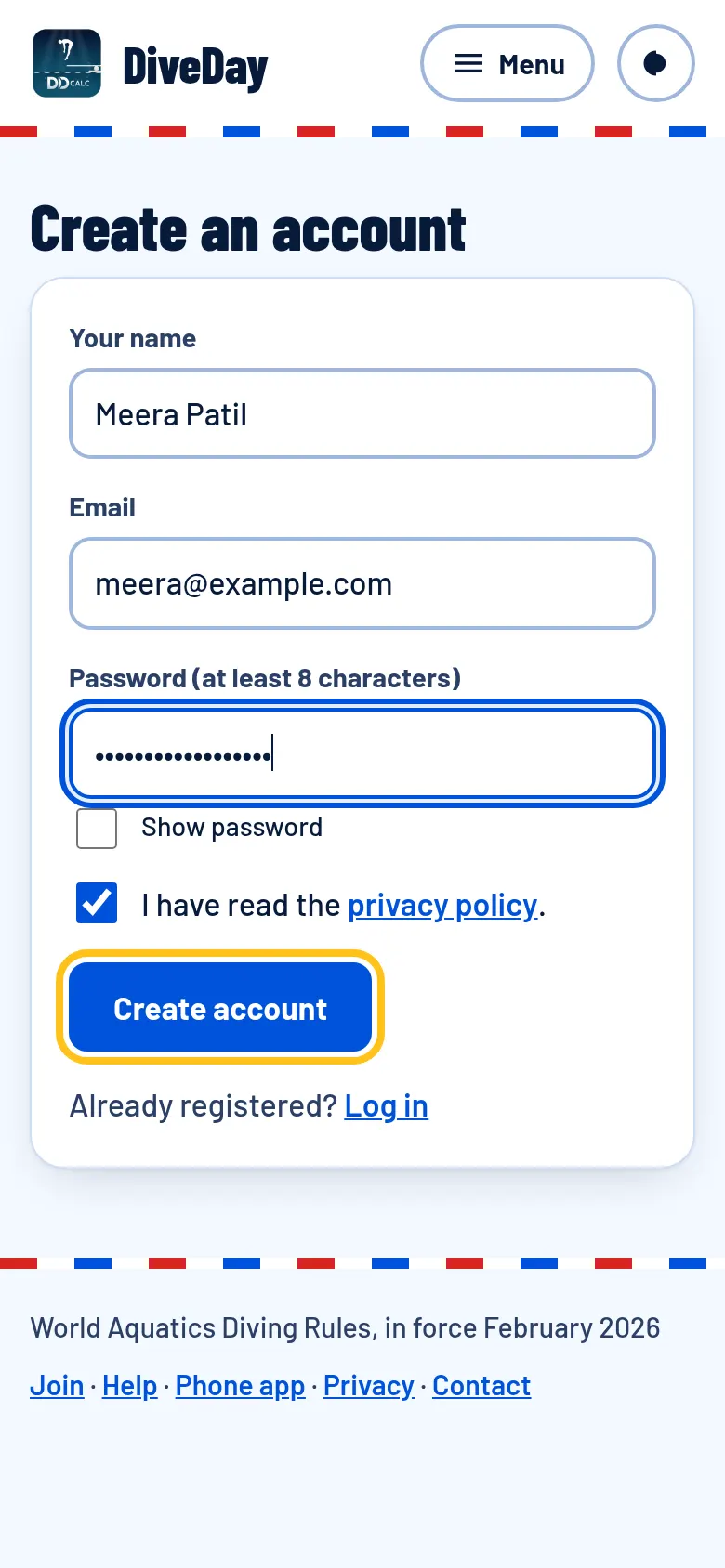
Go to diveday.in/register and enter your name, email and a password, or tap Continue with Google. One account does for the whole family: parents add their children as divers, and adult divers add themselves.
On Android you can do all of this in the DiveDay app too; on iPhone, put the website on your Home Screen.
2Confirm your email
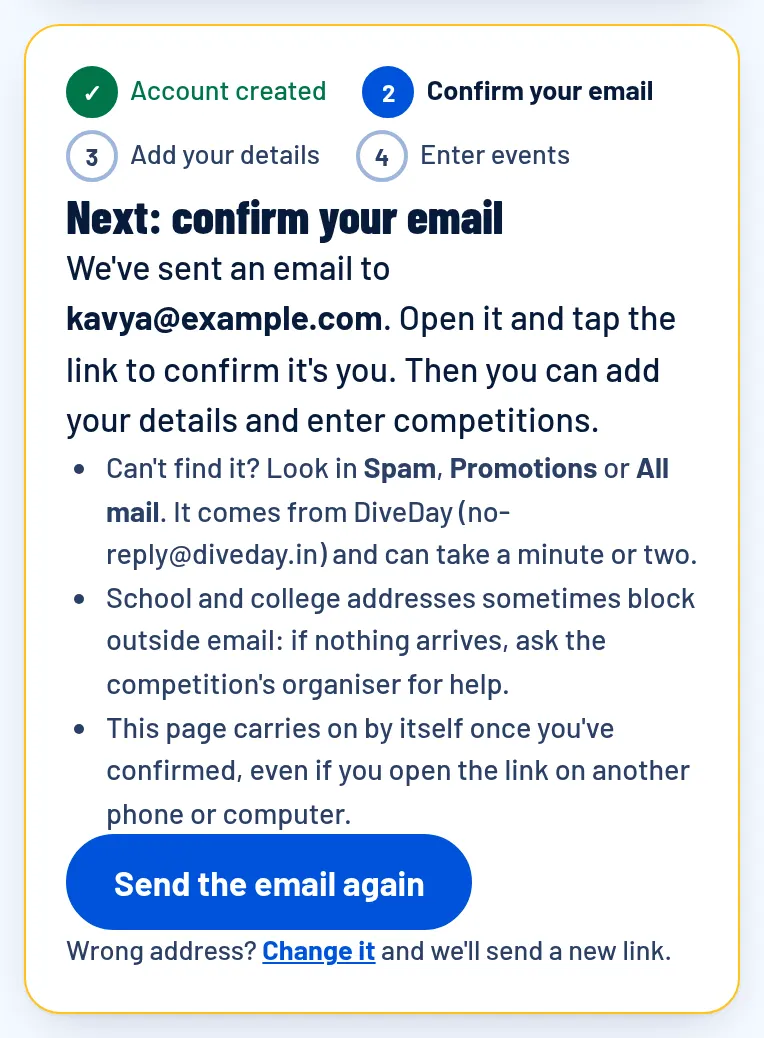
We email you a link: open it and tap it. Can't find it? Look in Spam or Promotions, or tap Send the email again. Typed the address wrong? Change it and we send a new link.
Signed up with Continue with Google? Skip this step: Google has already confirmed your email.
3Add your diver
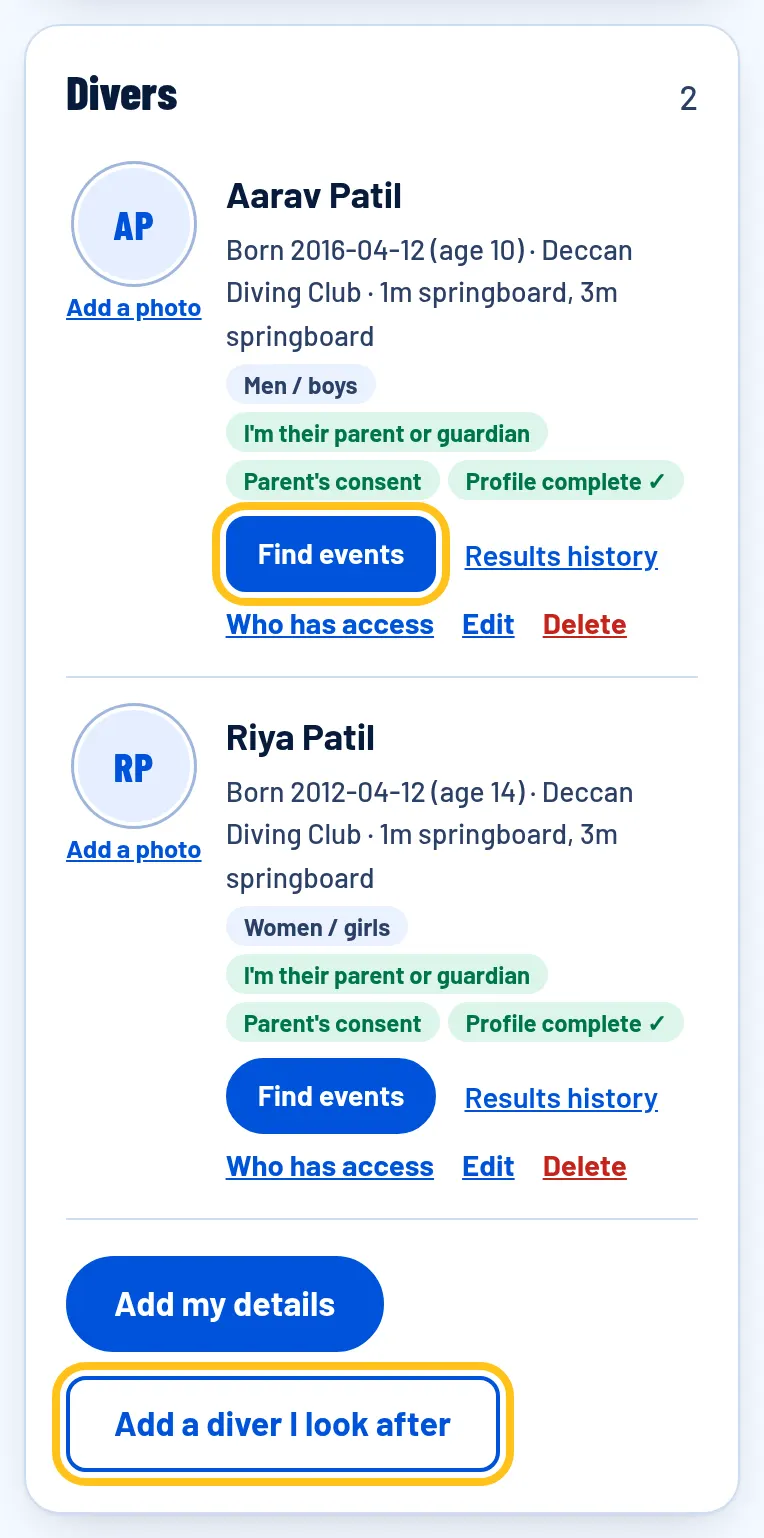
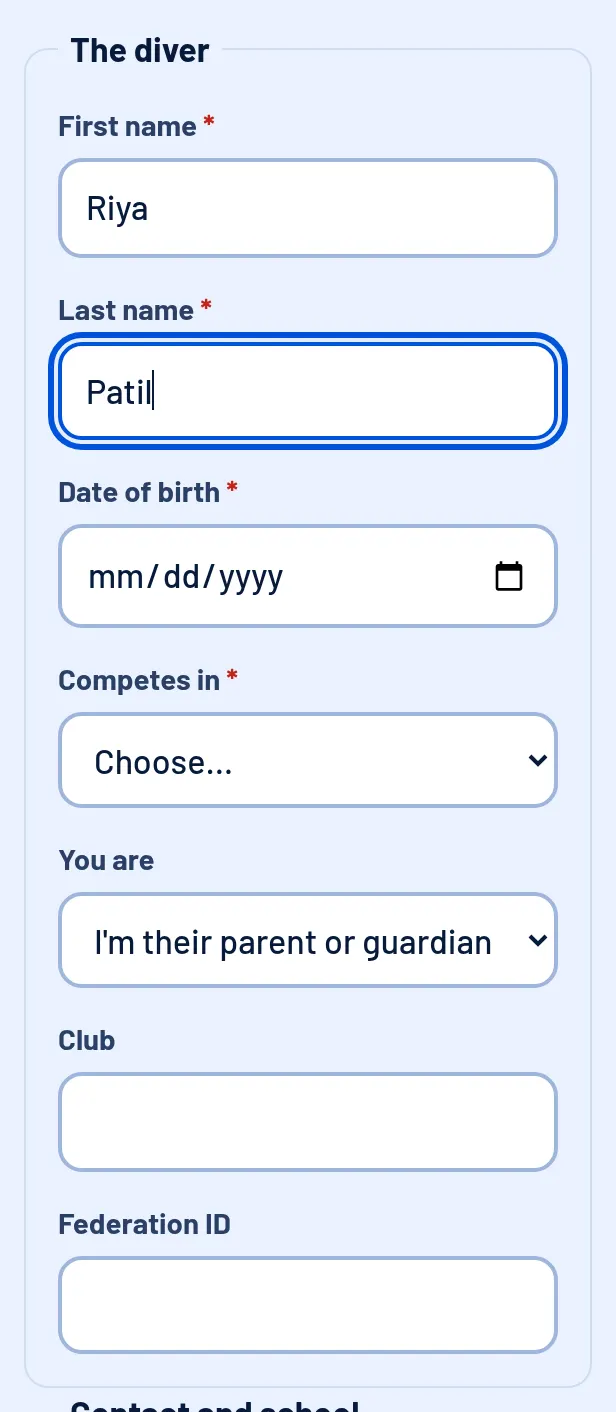
On your account page, under Divers, tap Add a diver I look after (or Add my details if you dive yourself). Fill in the name, date of birth, whether they dive in men's/boys' or women's/girls' events, the club and the boards they dive.
The fields marked * are needed before the diver can be entered (their phone, district, an emergency contact and blood group); you can save and finish later. Emergency details are seen only by you and the organisers and referees of competitions the diver enters.
4Find events to enter
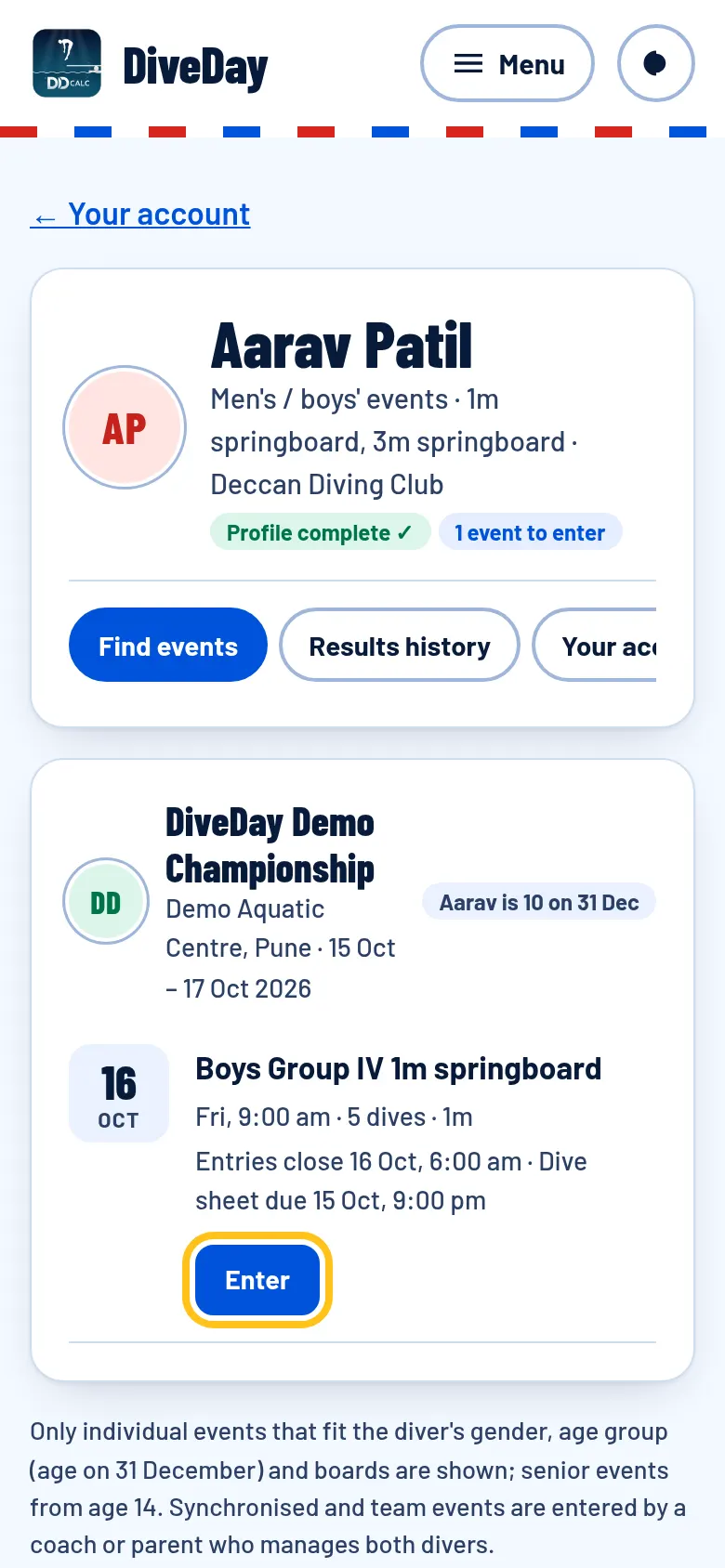
Tap Find events next to your diver. It lists only the events that fit them (gender, age group by their age on 31 December, and boards) with the entry and dive sheet deadlines. Tap Enter: the diver is entered and the dive sheet opens.
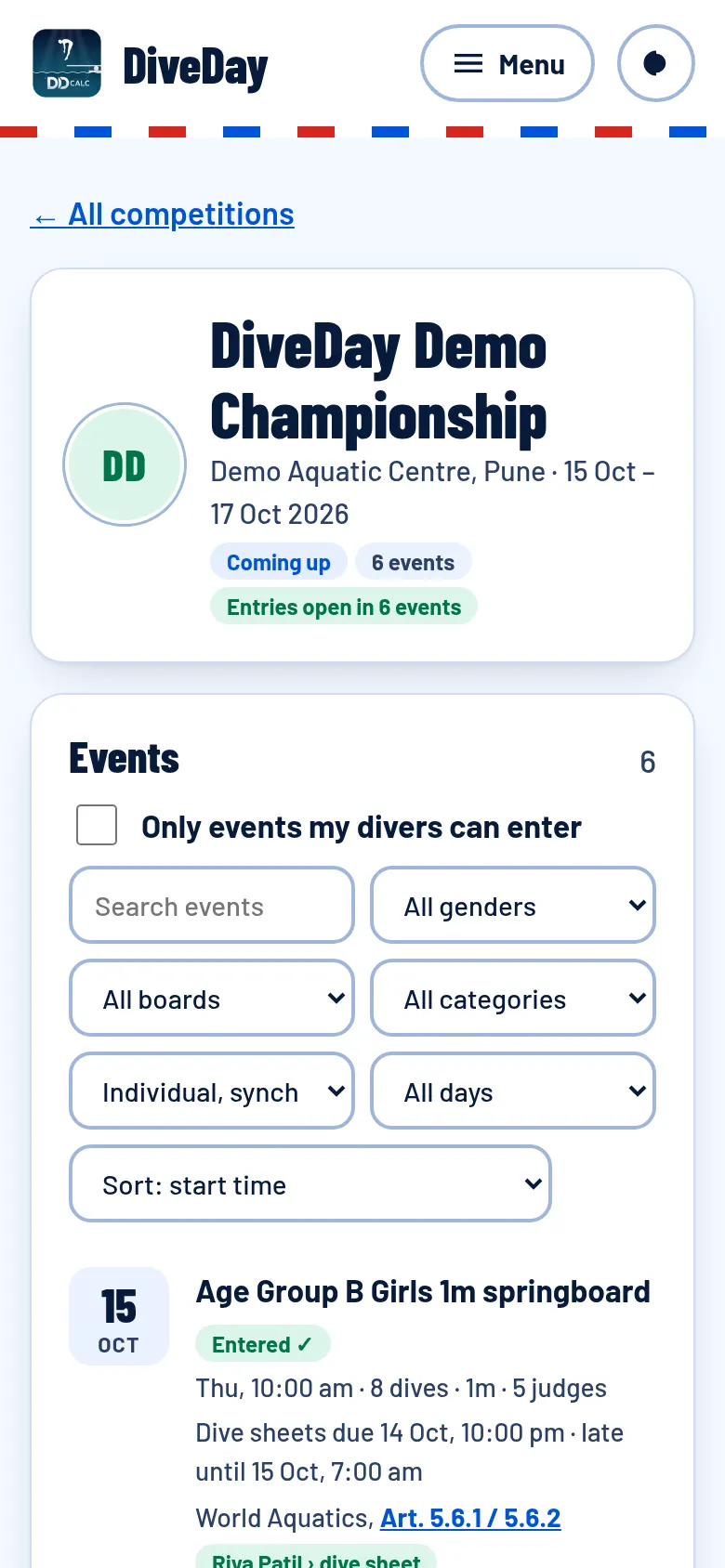
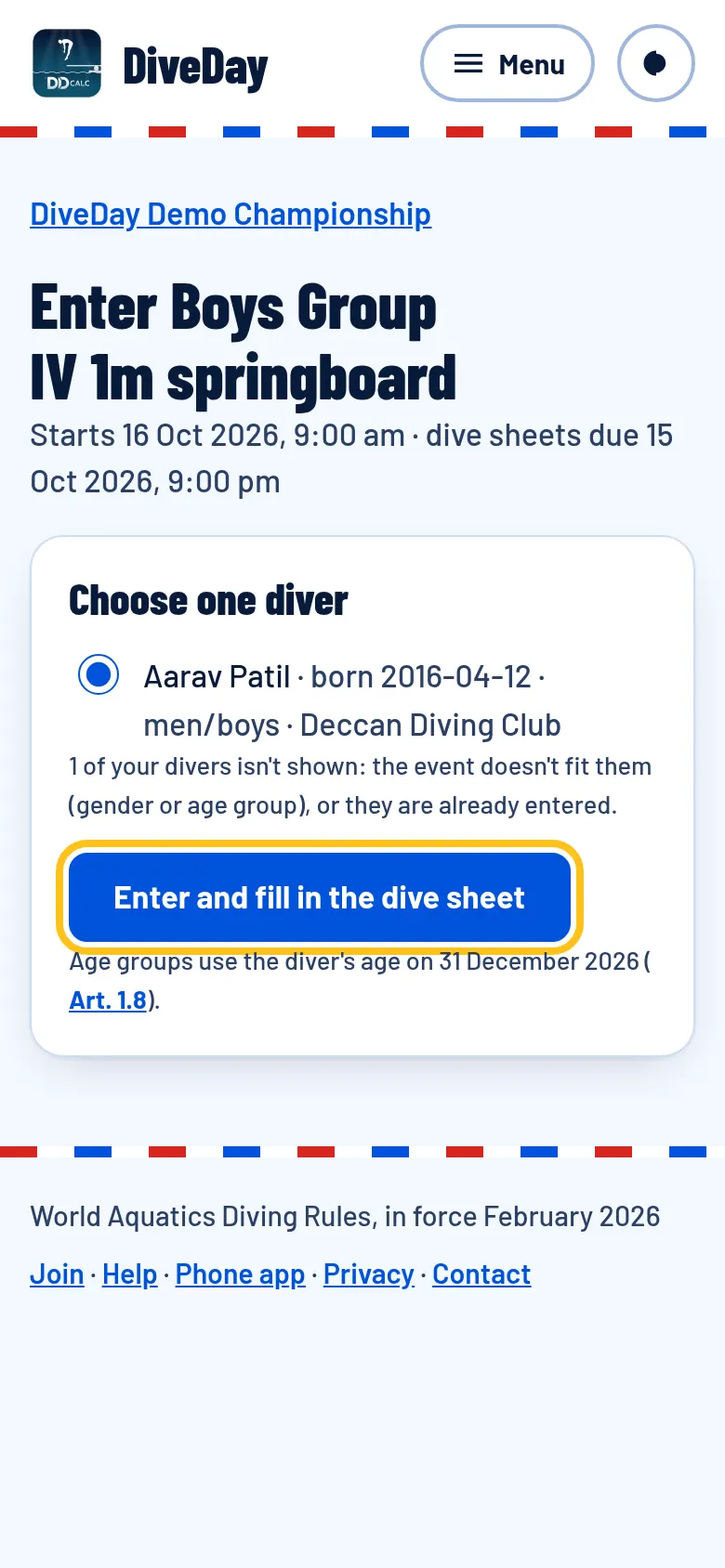
You can also open a competition from Competitions: its page has every event, the deadlines and the organiser's information. Tick Only events my divers can enter, then Enter, choose the diver and tap Enter and fill in the dive sheet.
5Fill in the dive sheet
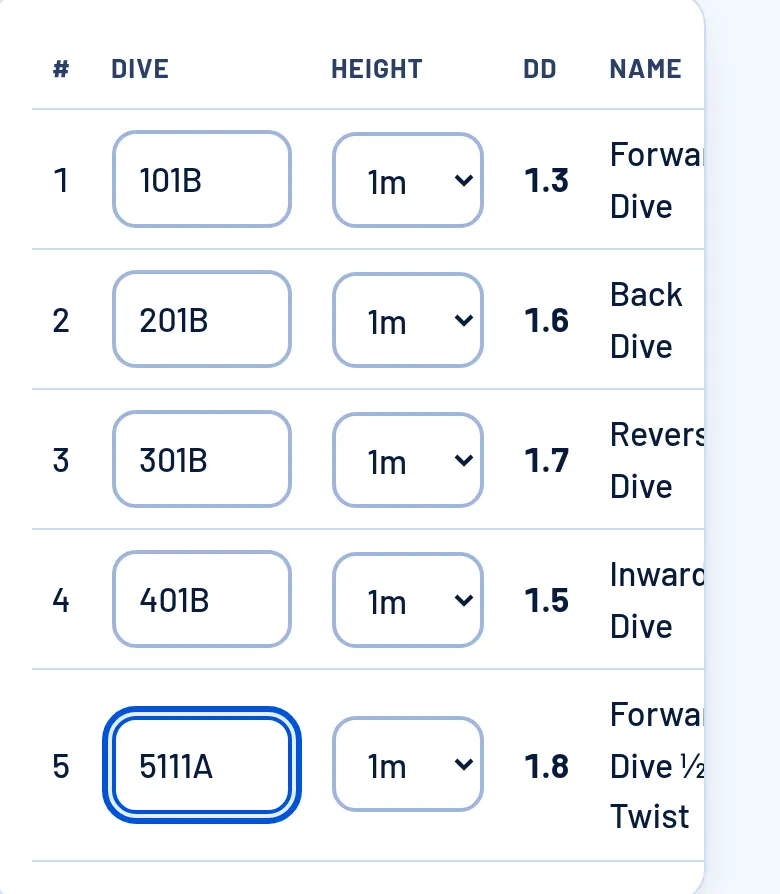
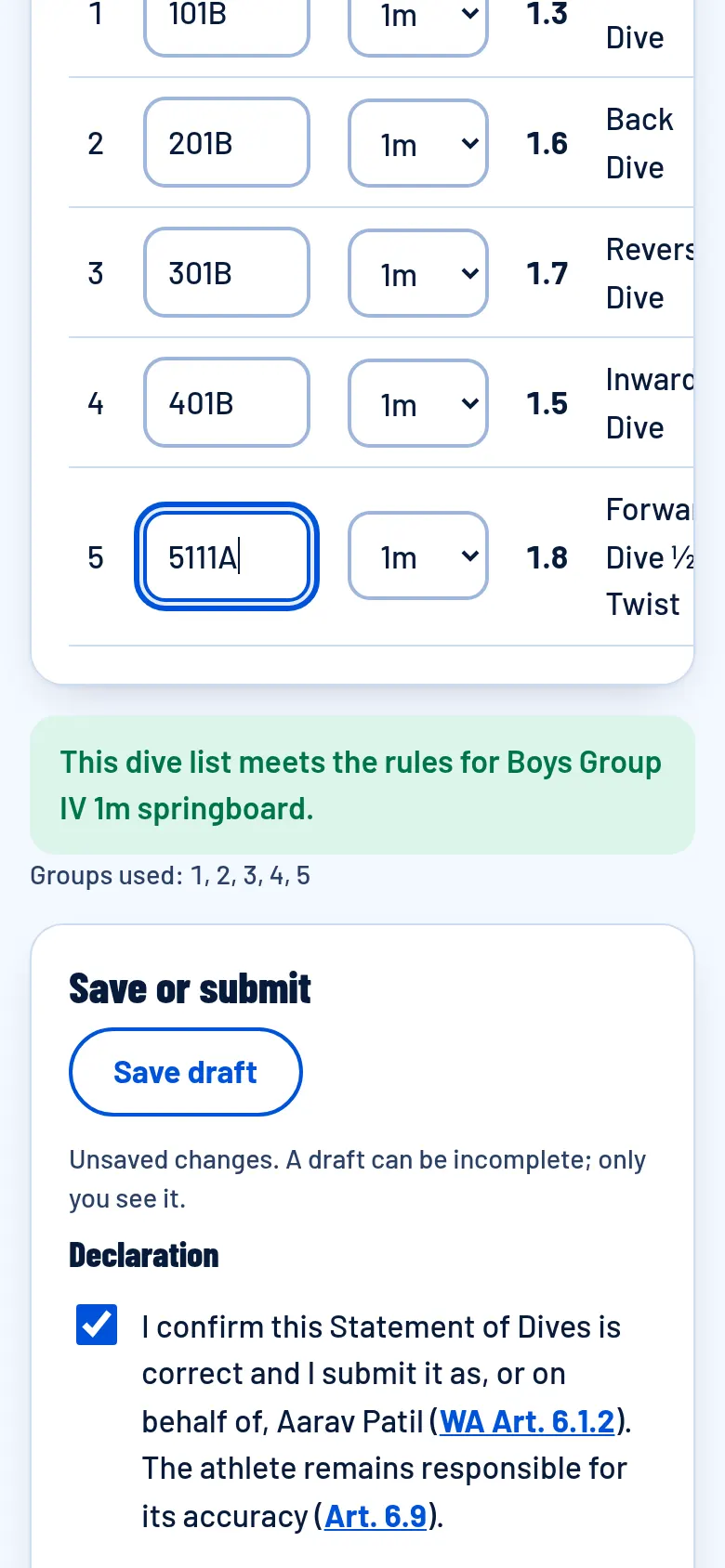
Type each dive's number and position, like 101B, and choose the board: the DD and the dive's name fill in by themselves. Underneath, DiveDay checks the list against the event's rules (number of dives, groups, DD limits) and says what to change. Dived before? Use an earlier dive list copies one from another event.
Save draft keeps it to yourself. When it's ready, tick the declaration and tap Finalize and submit.
6The Referee checks it
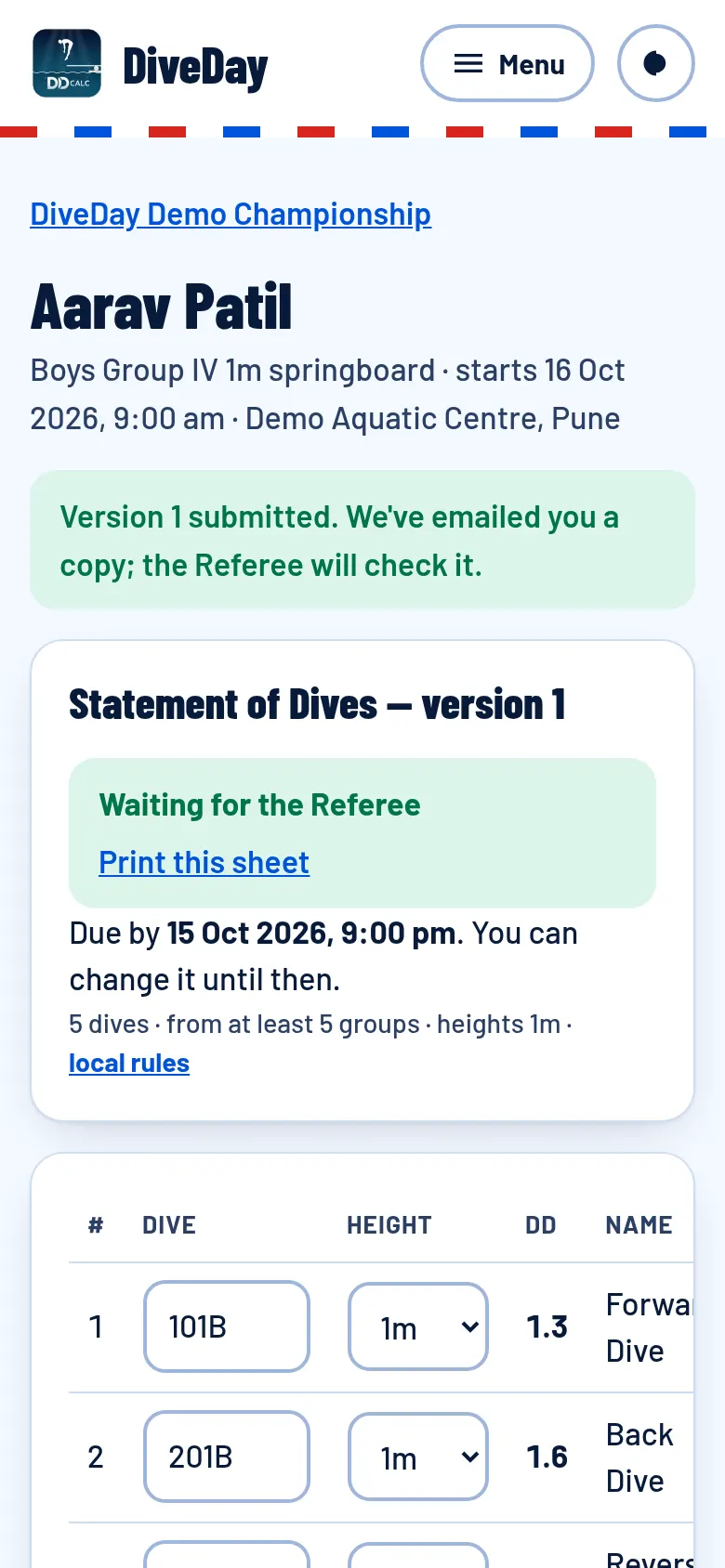
A submitted sheet waits for the Referee, who approves and locks it, or returns it with a note on what to correct: you get an email or a notification either way. Until the deadline you can still change it (each change is a new version).
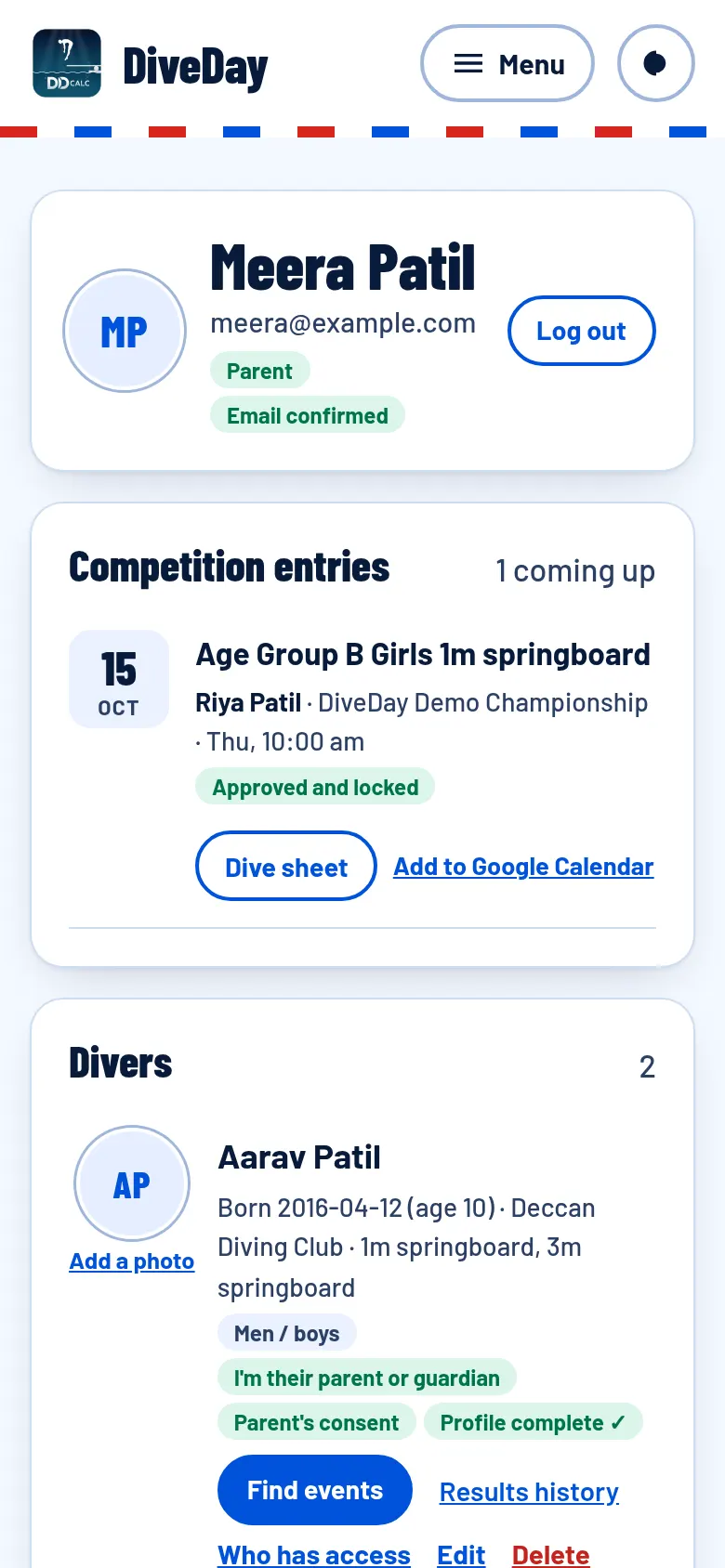
Your account page lists every entry with its status, the deadline and Add to Google Calendar.
7Synchro with a partner from another family
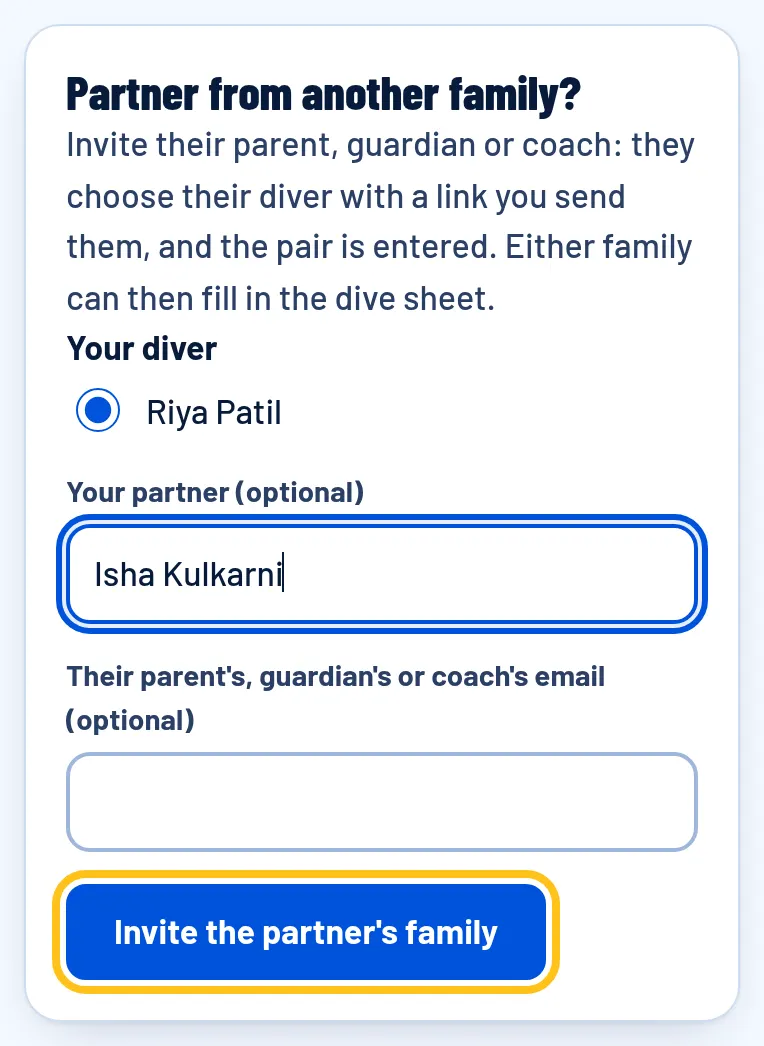
Open the synchro event's Enter page, choose your diver and tap Invite the partner's family. Send them the link (WhatsApp, email…): they choose their diver and the pair is entered. Either family can then fill in the dive sheet.
8Reminders and notifications
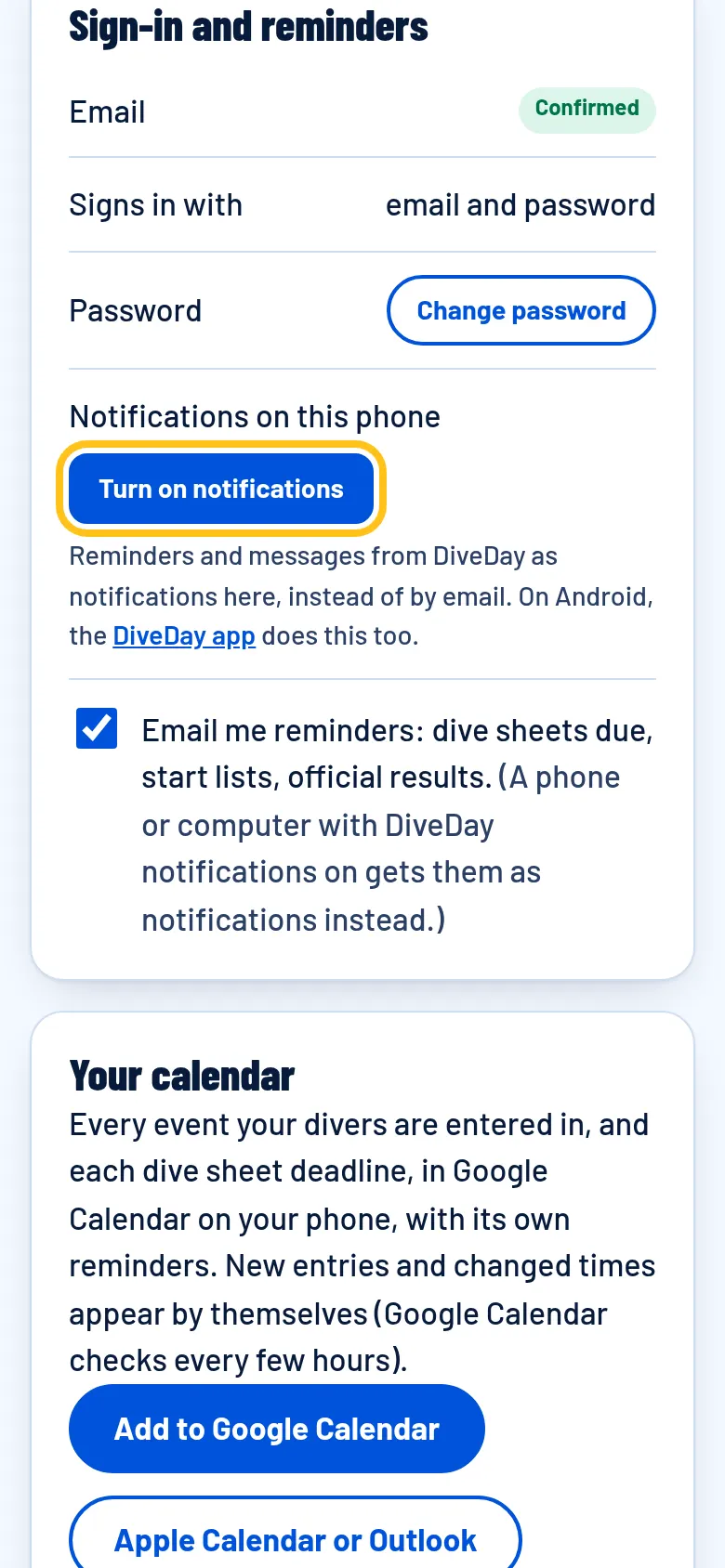
In your account, under Sign-in and reminders, tap Turn on notifications: reminders (dive sheets due, start lists, official results) and the organisers' messages then come to this phone or computer instead of by email. The Android app gets them too; on iPhone, add DiveDay to your Home Screen first. Your calendar puts every event and deadline in Google, Apple or Outlook Calendar.
9On the day: the running order
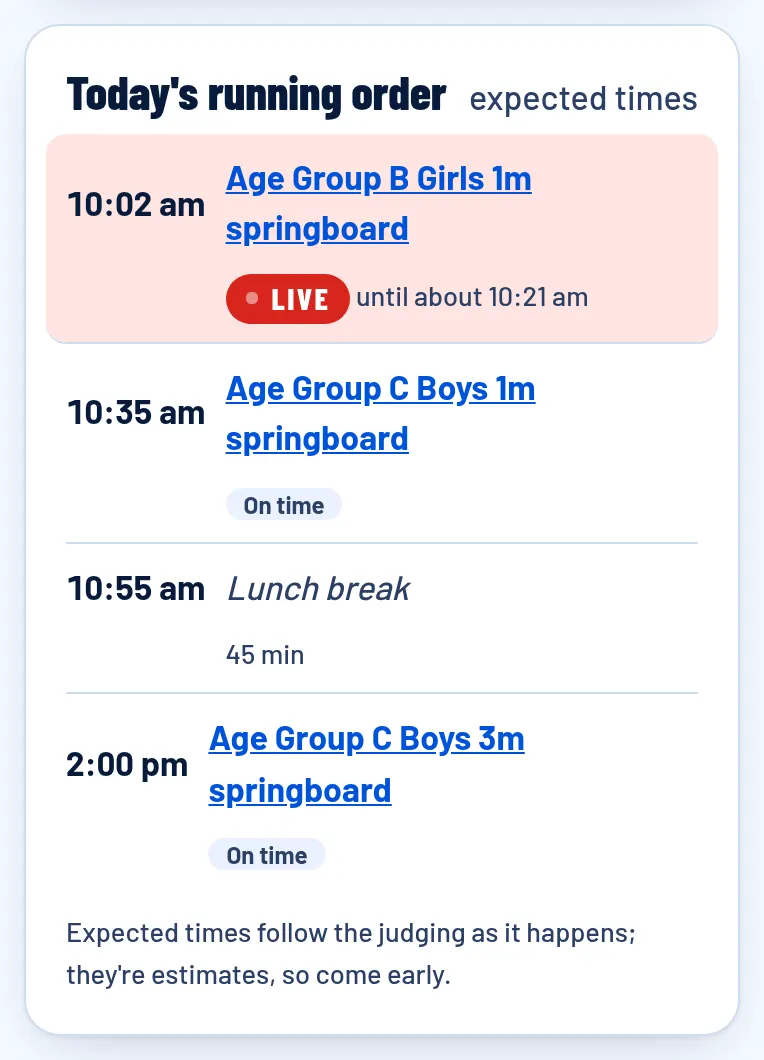
On the competition's page, Today's running order shows when each event is expected to start. It follows the judging as it happens: if an event runs late or finishes early, the times after it move. They're estimates, so come early.
10Live scores
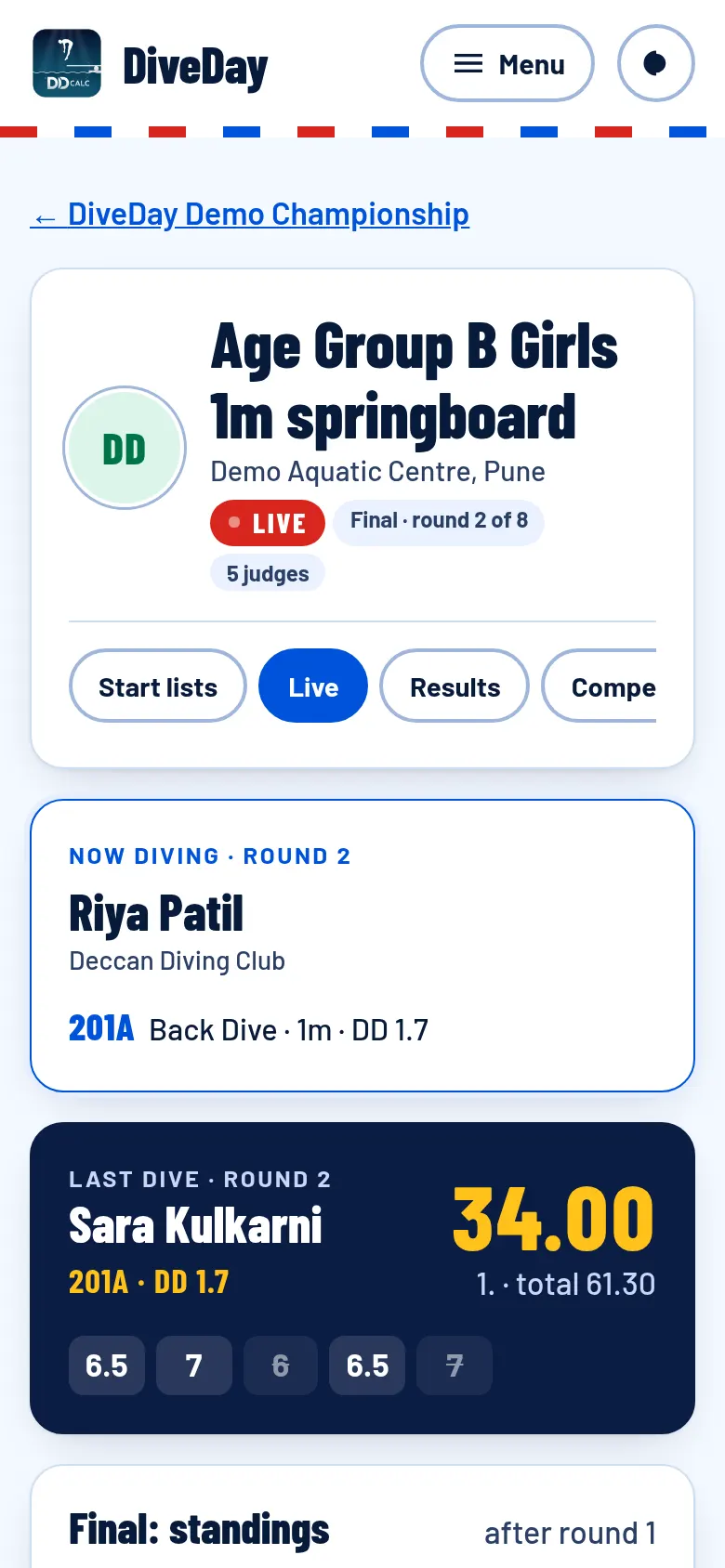
Tap a live event, or Live on its page: who's on the board now, each score as it's published, and the standings.
11Results and your diver's history
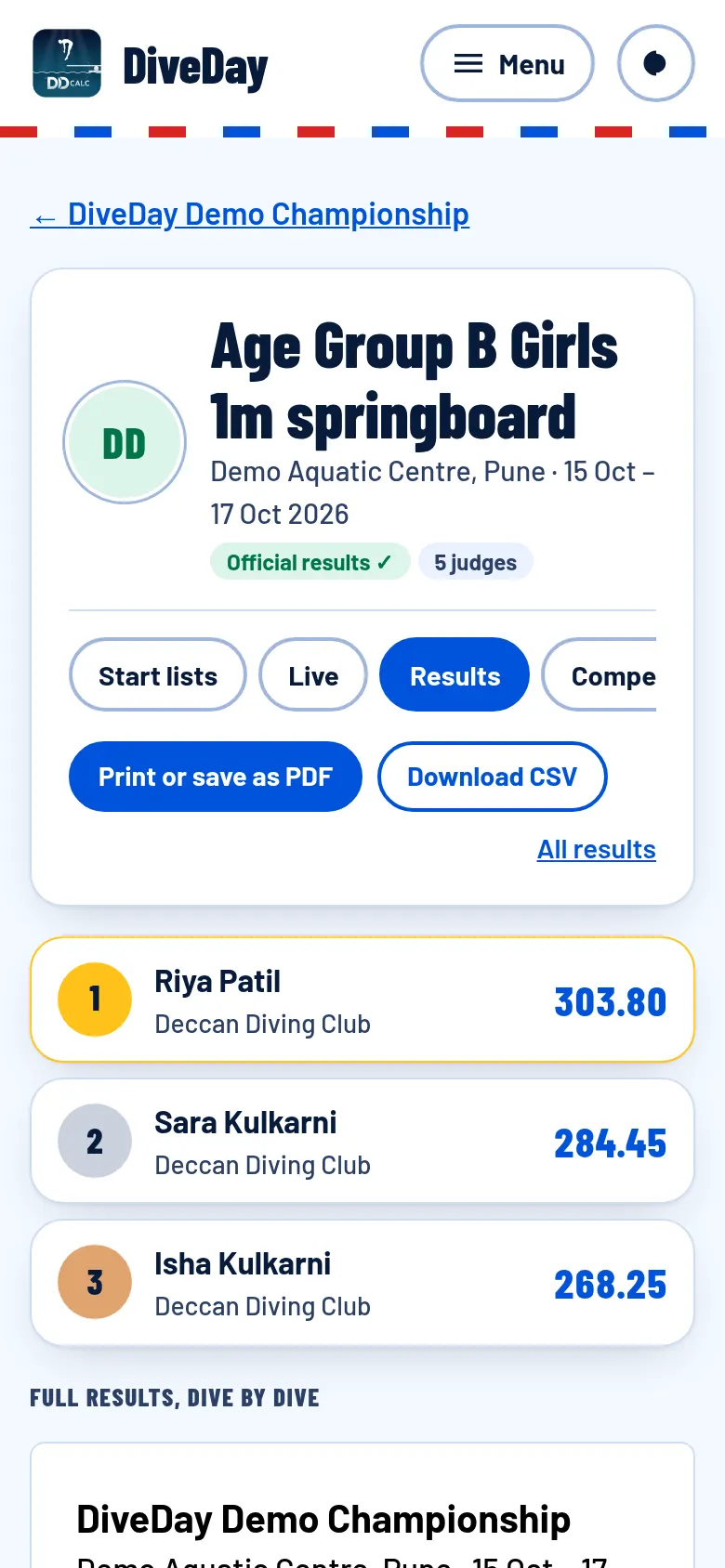
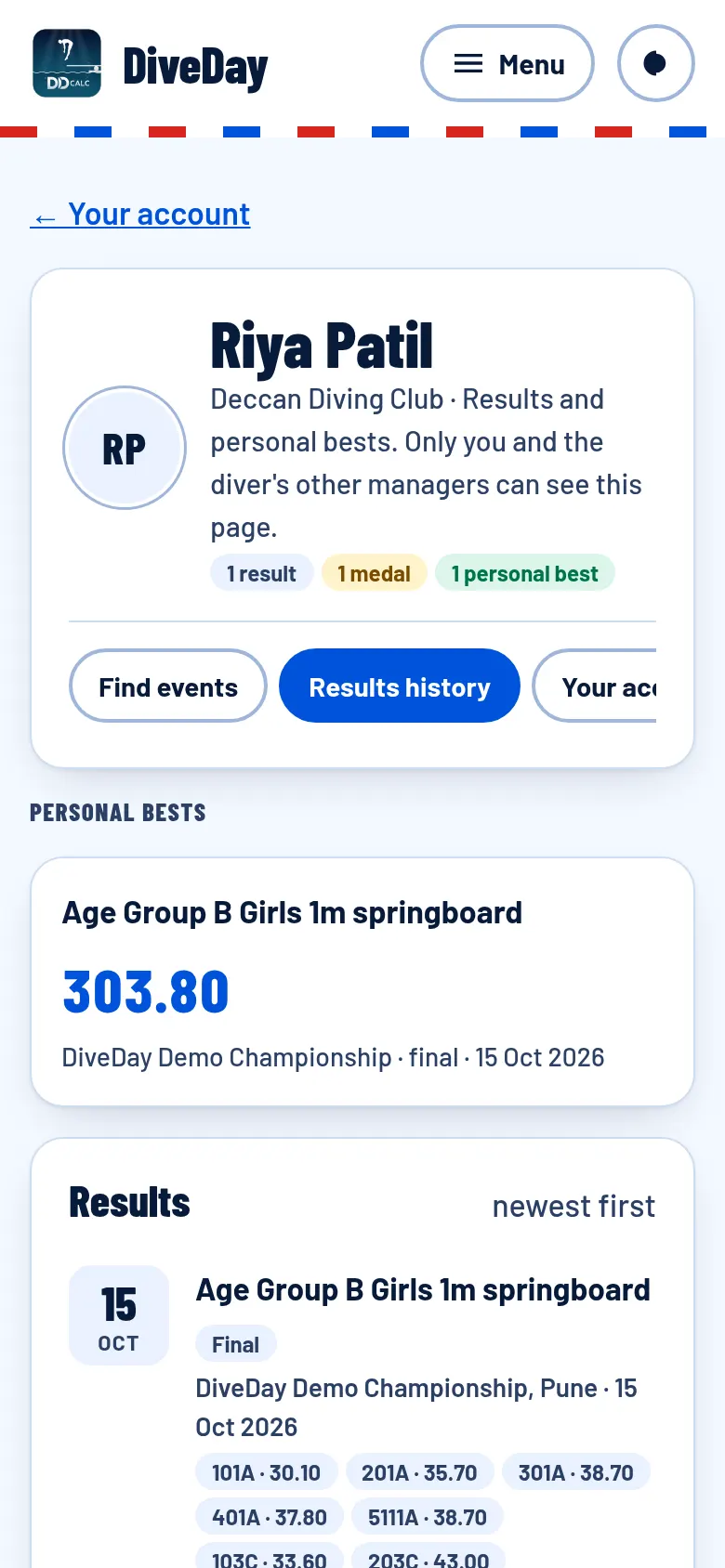
Once the organisers declare them official, the results are on the event's page, to print, save as PDF or download. Each diver's Results history keeps every competition's scores and personal bests. Only you (and the diver's other managers) see it, unless you choose to make a public profile.
For organisers
Organising needs approval: create an account (steps 1–2 above), then ask us (Contact, at the bottom of the page) to approve it as an organiser, and Organise appears in the menu. These pages are easiest on a computer or tablet.
1Create the competition
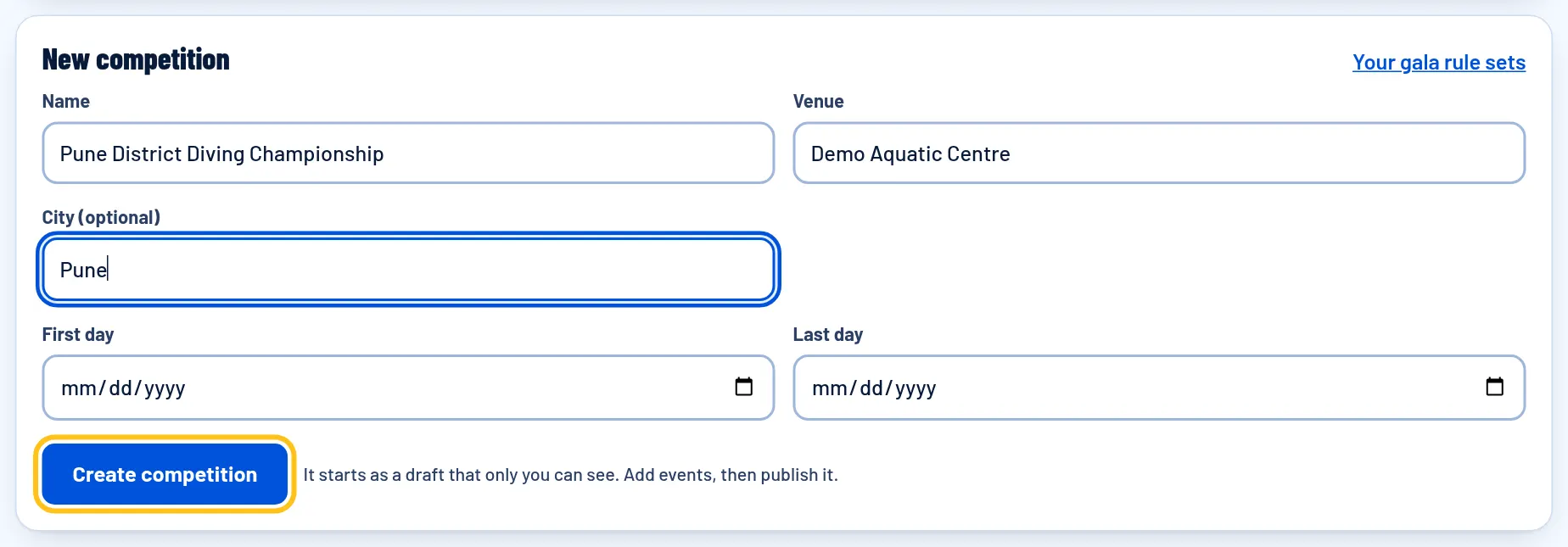
Open Organise, fill in New competition (name, venue, city, first and last day) and tap Create competition. It starts as a draft that only you and its officials can see.
2Your own age groups, if you need them
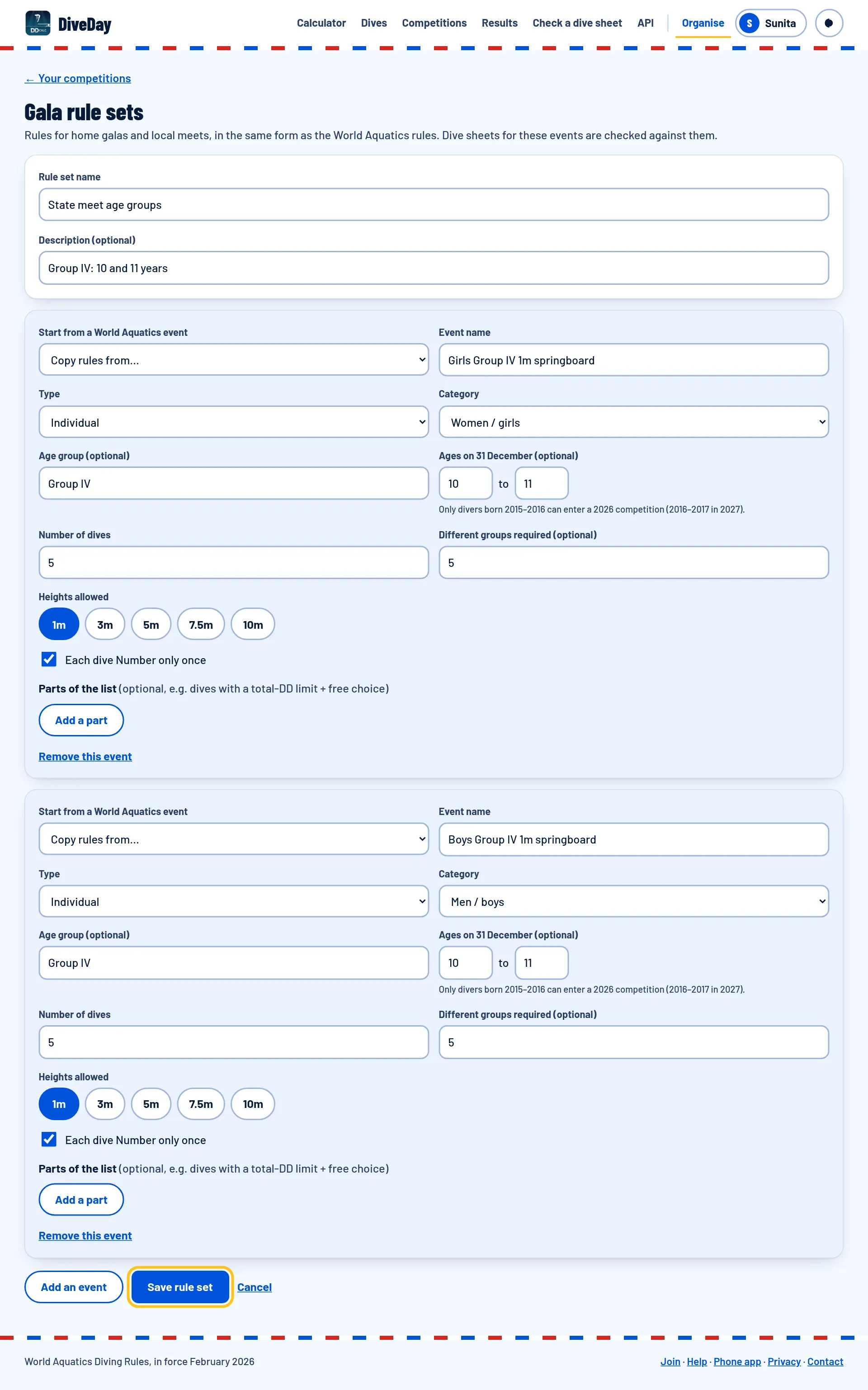
Events follow the World Aquatics rules, age groups A, B and C included. For local groups such as Group IV (10 and 11 years), make a gala rule set: Organise › Your gala rule sets › New rule set. For each event set the category, the ages on 31 December, the number of dives and how many groups they must come from (or start from a copy of a World Aquatics event). Dive sheets for these events are checked against your rules.
3Add the events
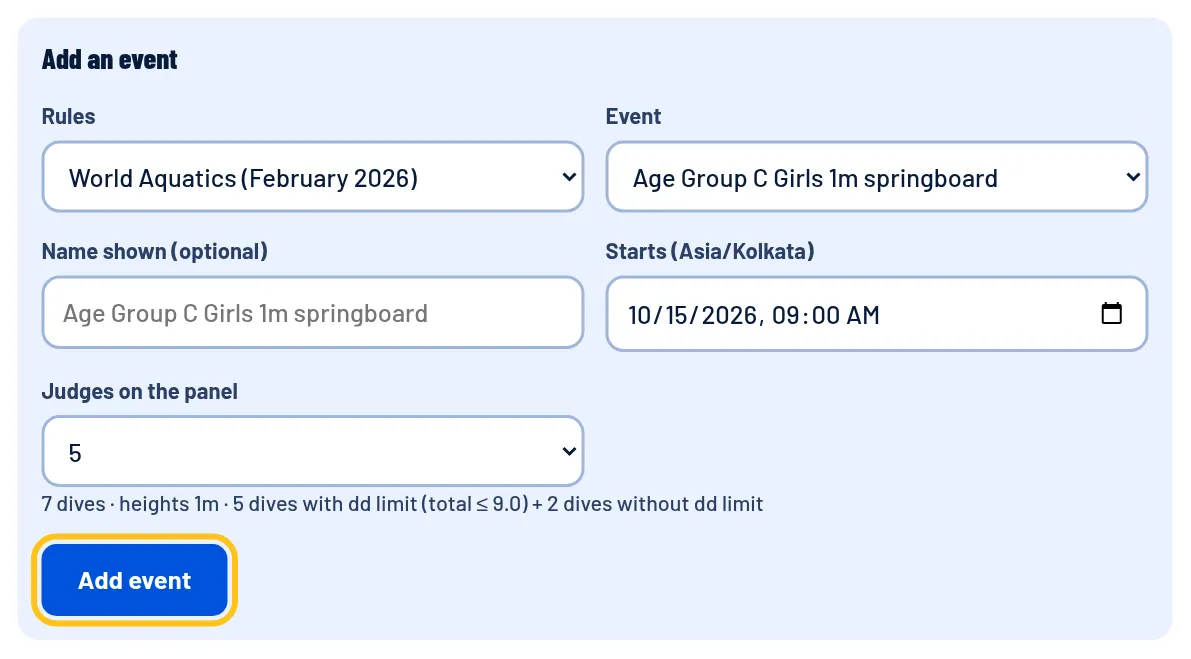
On the competition's Manage page, under Add an event: choose the rules (World Aquatics or your rule set), the event, when it starts and the number of judges, then Add event. Each event's Stages adds a preliminary and final; Merge… lets small events dive together.
4Add your officials
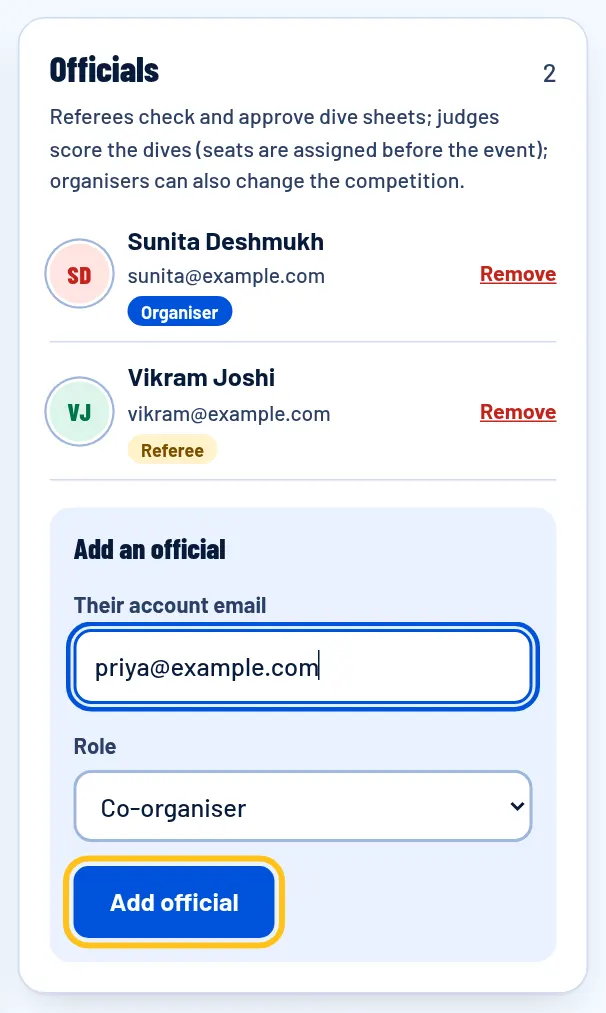
Add the Referee (who checks and approves dive sheets) and any co-organisers with the email of their DiveDay account. Judges don't need an account: on the day each one signs in to their seat by scanning a QR code.
5Publish
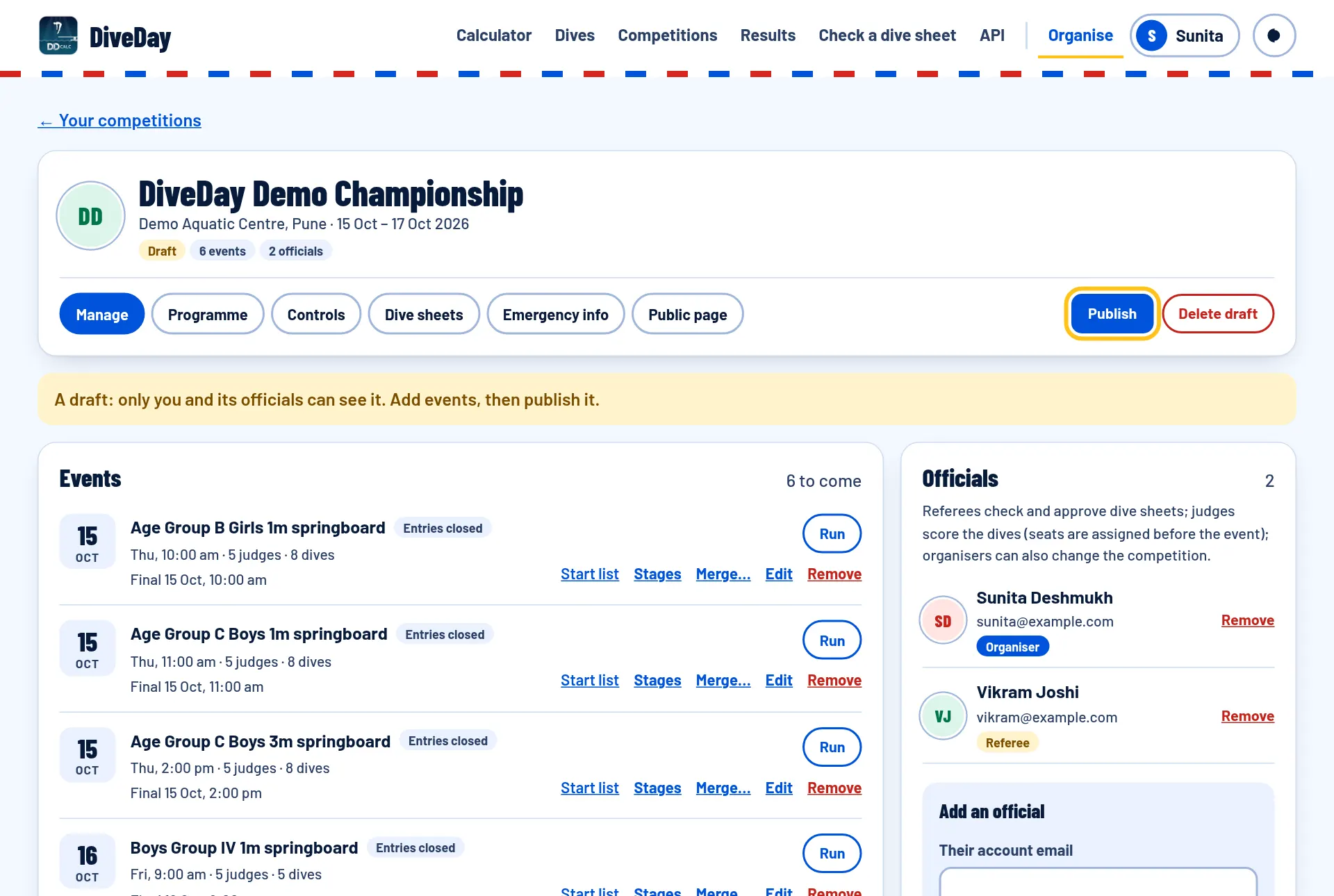
When the events are in, tap Publish: the competition appears on diveday.in and families can enter. The tabs along the top lead to everything else.
6Deadlines and settings
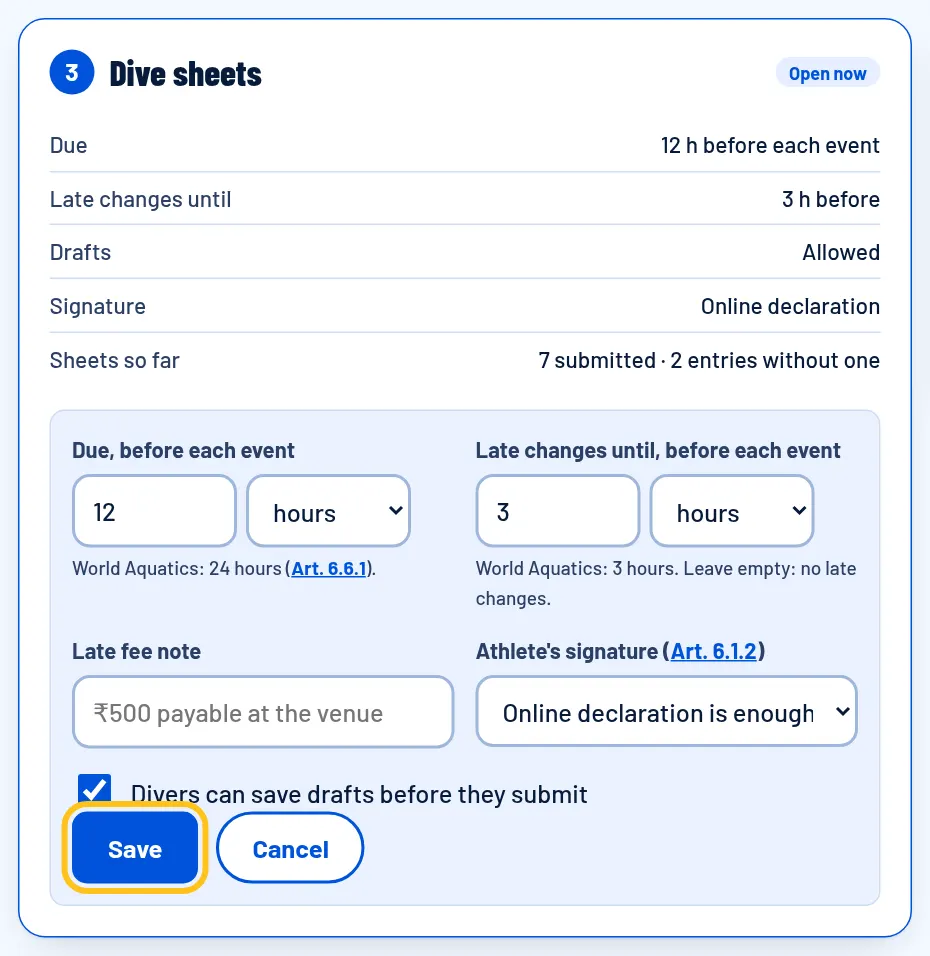
The Controls tab has every step in order, with each event's timeline. Edit a card to change it, for example Dive sheets: due 24 hours before each event (World Aquatics), late changes until 3 hours before, and a late-fee note. The other cards cover entries (when they open and lock, events per diver), the Referee's review, the draw, judges' phones or cards, and results.
7Plan the programme
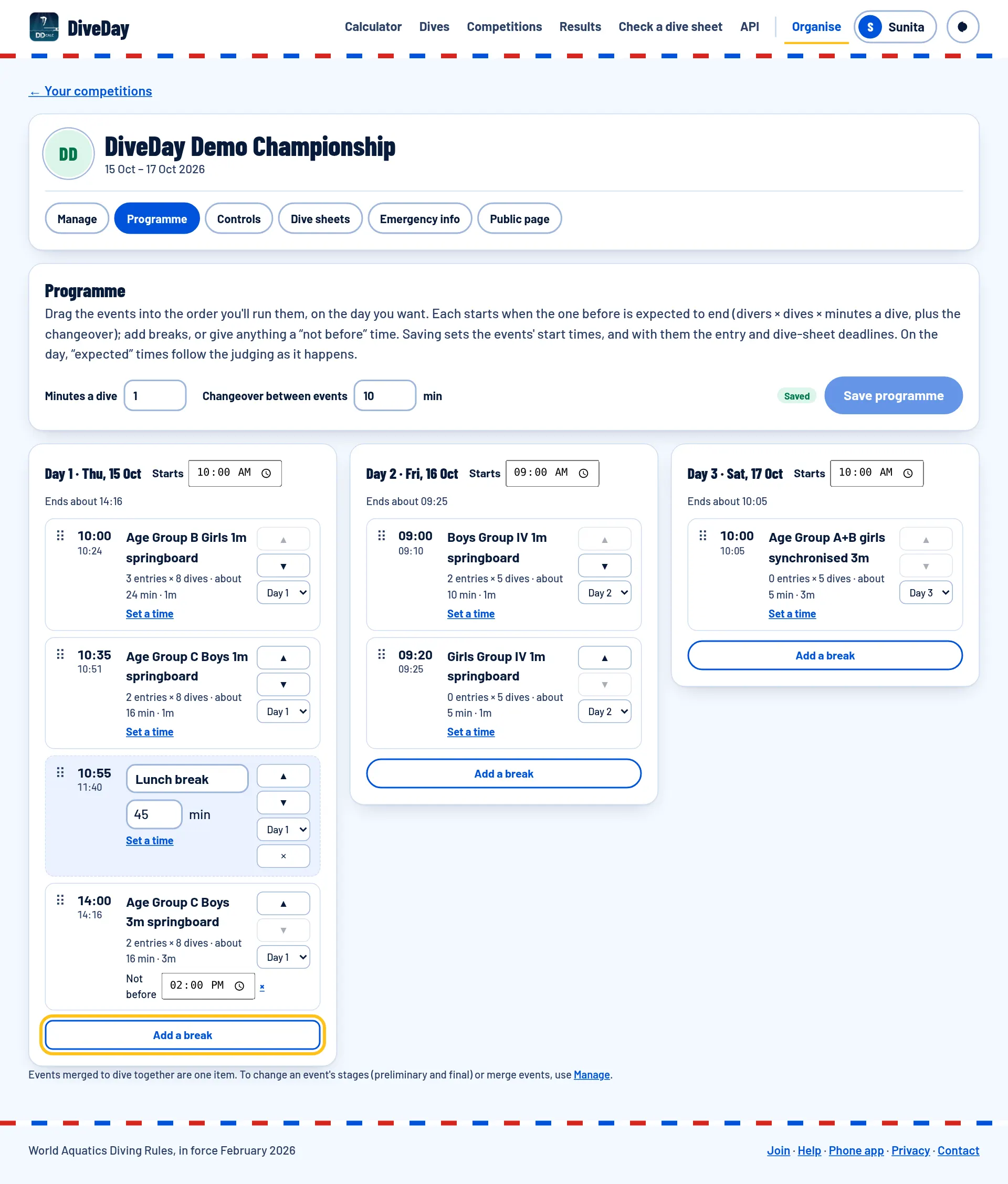
The Programme tab has a column for each day. Drag the events into the order you'll run them (or use the arrows), move them to another day, Add a break, or Set a time for anything that mustn't start earlier. Each event starts when the one before is expected to end: divers × dives × minutes a dive, plus the changeover. Save programme sets the start times, and with them the entry and dive sheet deadlines.
8Check the dive sheets
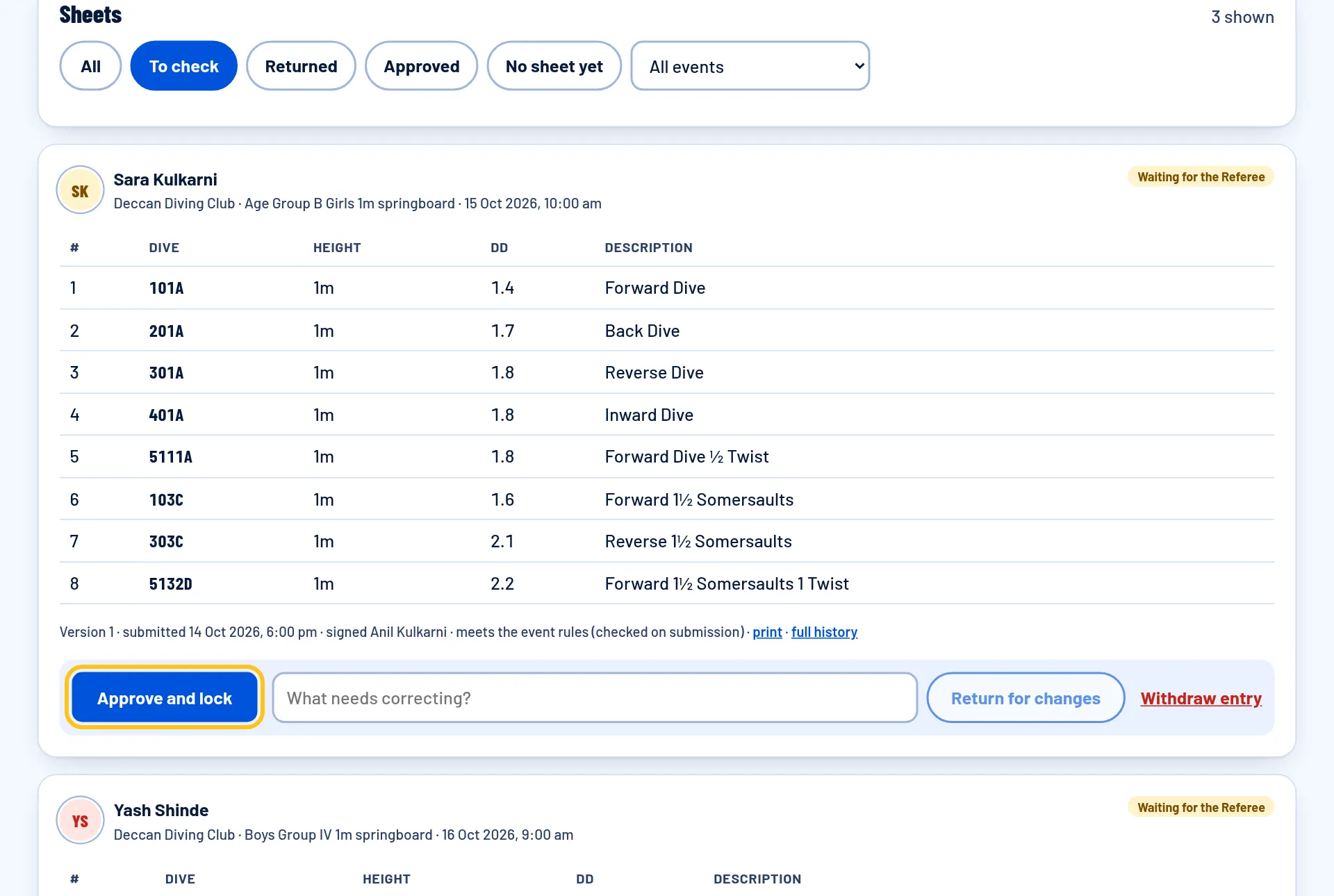
On the Dive sheets tab the Referee (or an organiser) sees each event's sheets. Approve and lock a correct one, or write what needs correcting and Return for changes. Every diver needs an approved sheet before their event starts.
9Draw the start lists
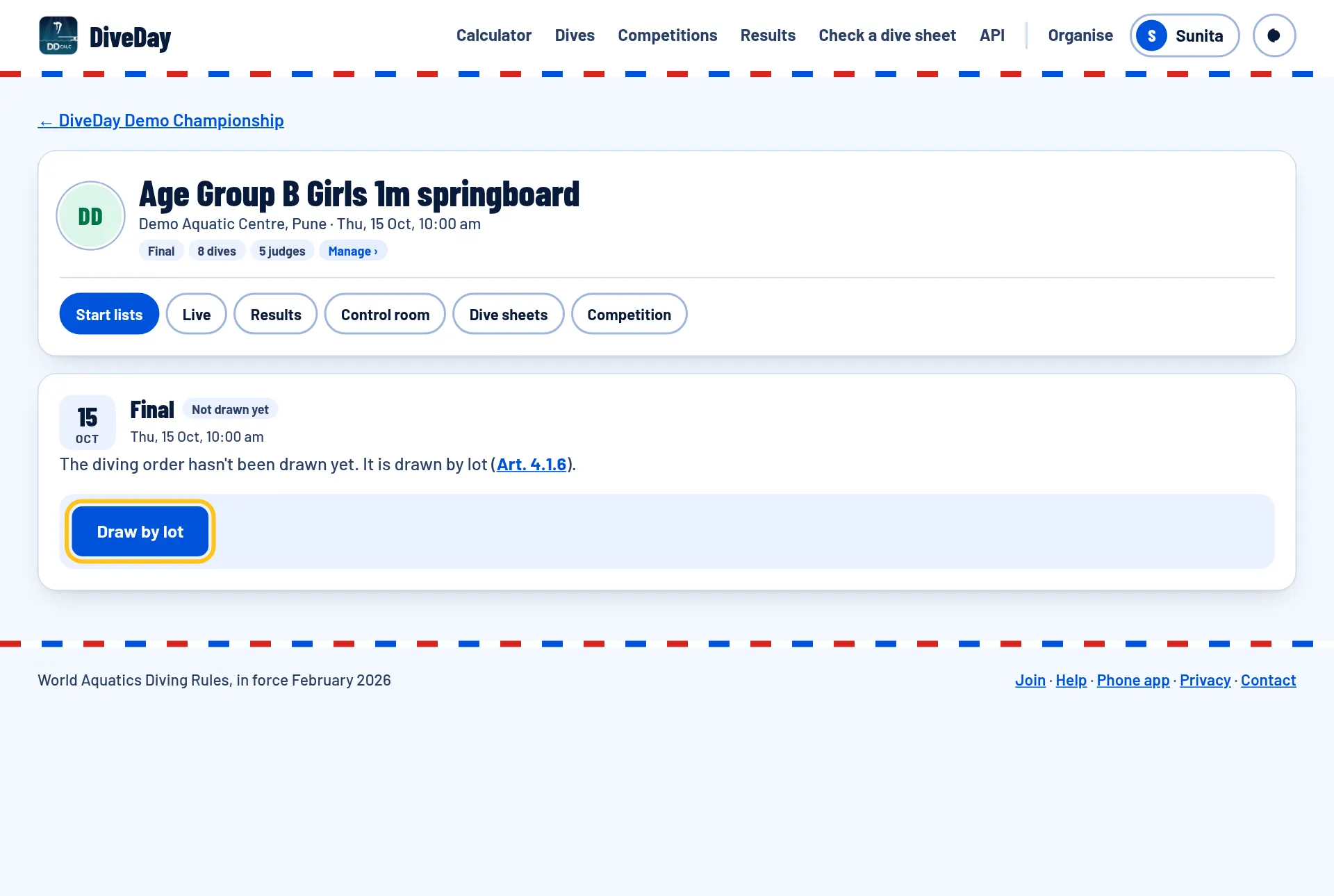
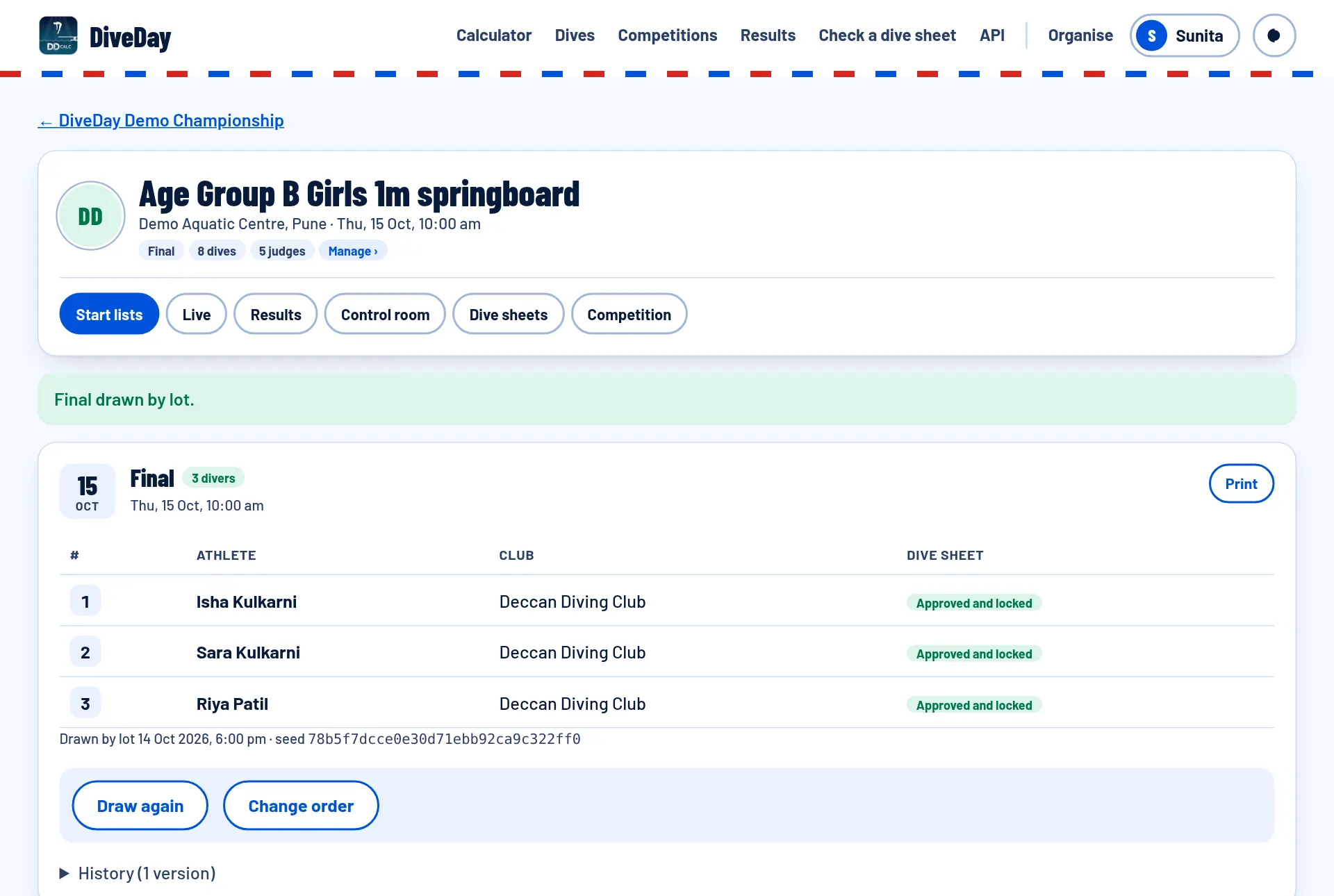
On an event's Start lists, tap Draw by lot: the order and its seed are recorded. Change order adjusts it and Print makes a copy for the notice board. The Controls page can also draw every event at a set time.
10On the day: the control room
Open the event's Control room (Run on the Manage page). It checks that every dive sheet is approved; tap Start the final (or the preliminary).
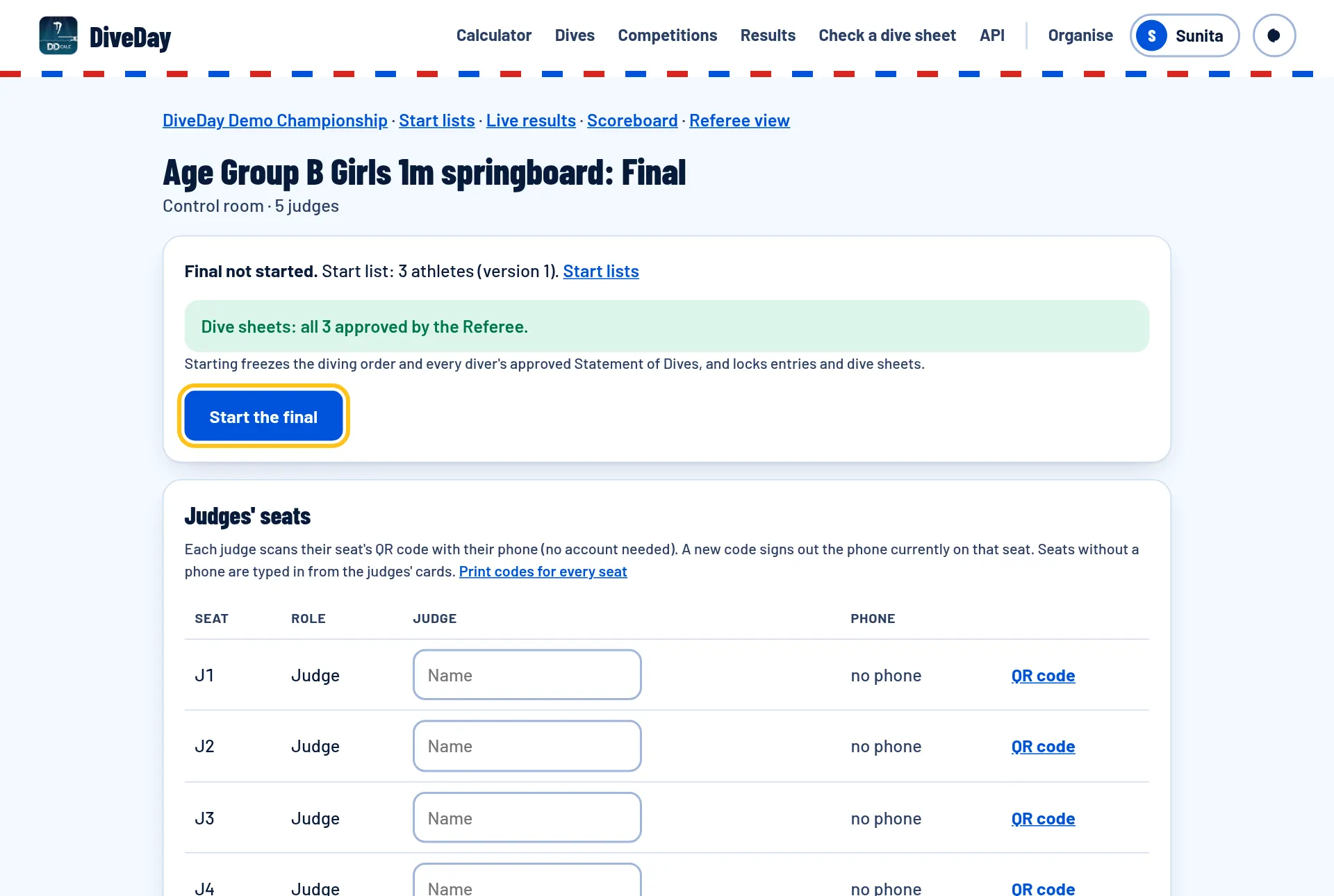
11Judges score on their phones
Under Judges' seats, tap QR code for a seat, or Print codes for every seat. Each judge scans their code with their phone (no account, no app) and taps their award. Seats without a phone are typed in from the judges' cards.
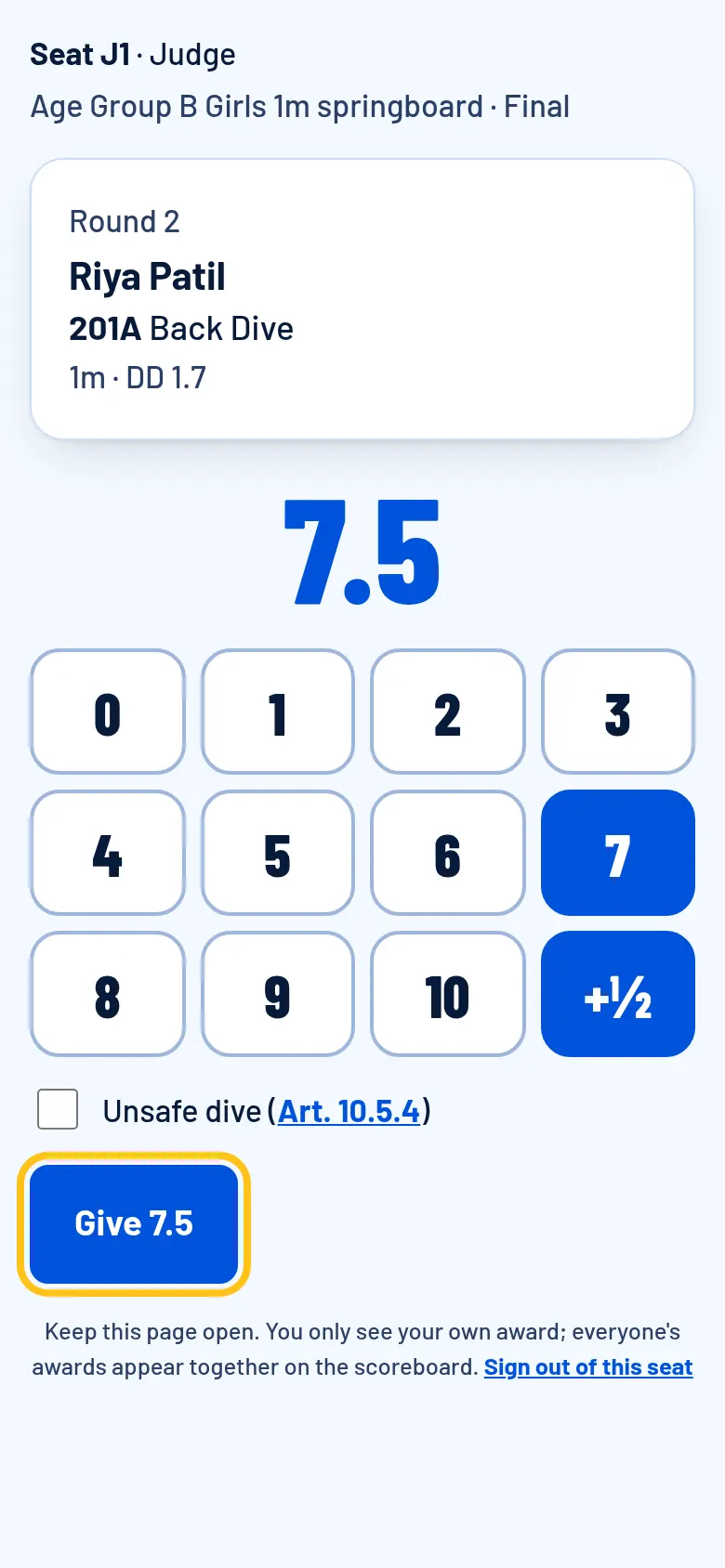
12Publish each dive's score
The control room shows the diver on the board and each award as it arrives. When they're all in, tap Publish score: the scoreboard, live results and standings update at once. The Referee's buttons handle a failed dive, restarts and maximum awards, and Correct fixes a score afterwards.
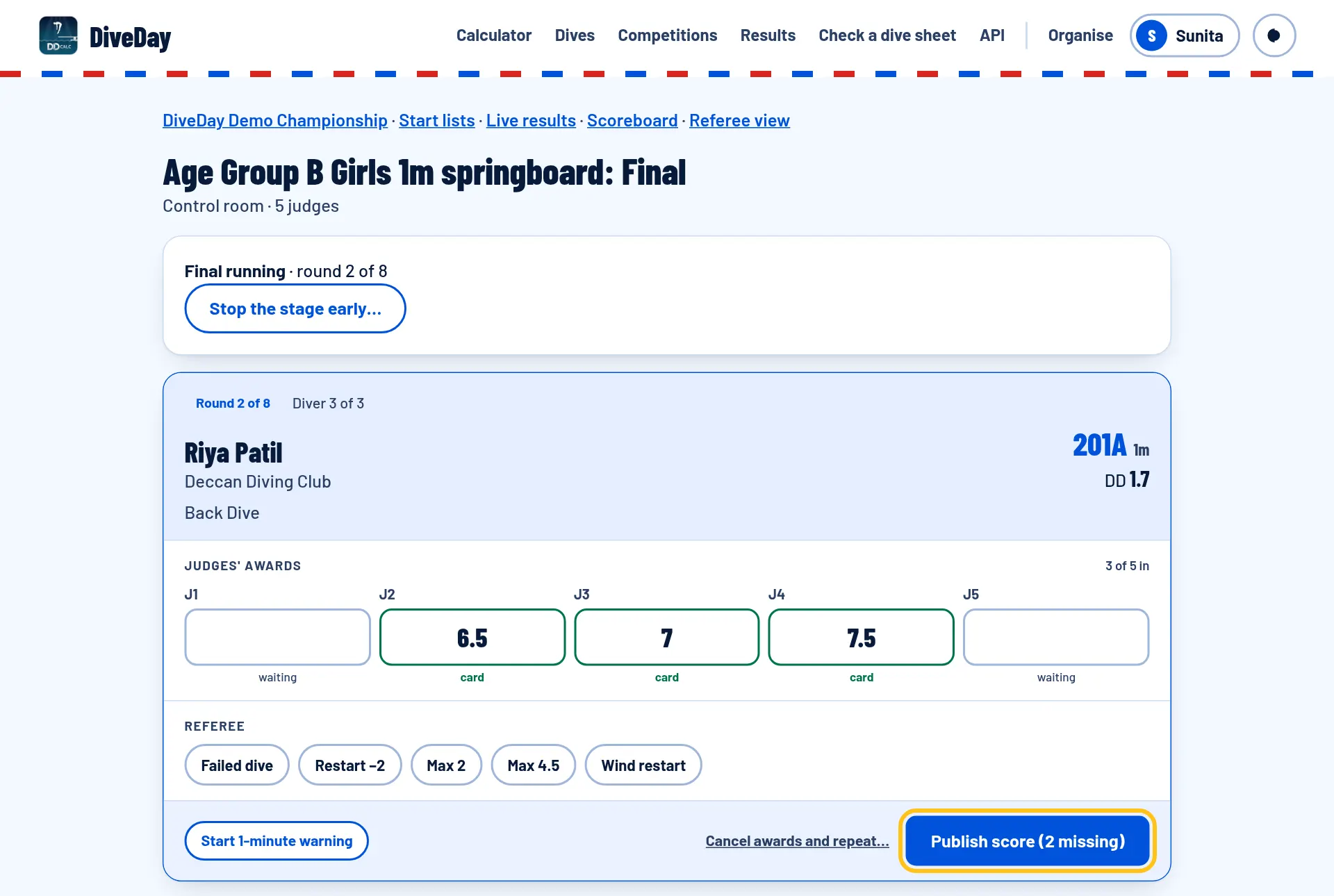
13The scoreboard for the venue
Open Scoreboard on a laptop connected to a TV or projector: the last dive's awards and score, who's diving now, and the standings.
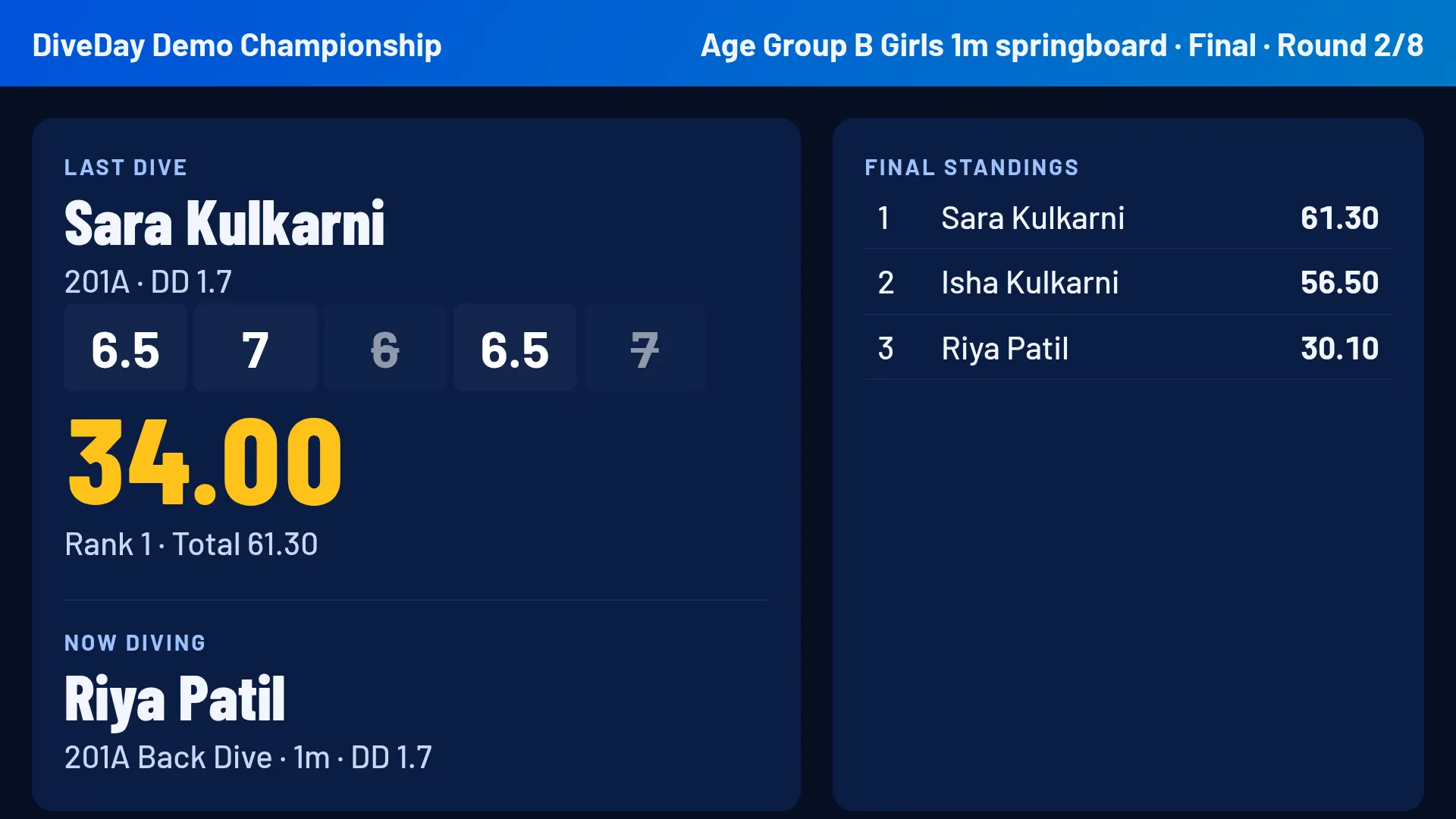
14Declare the results official
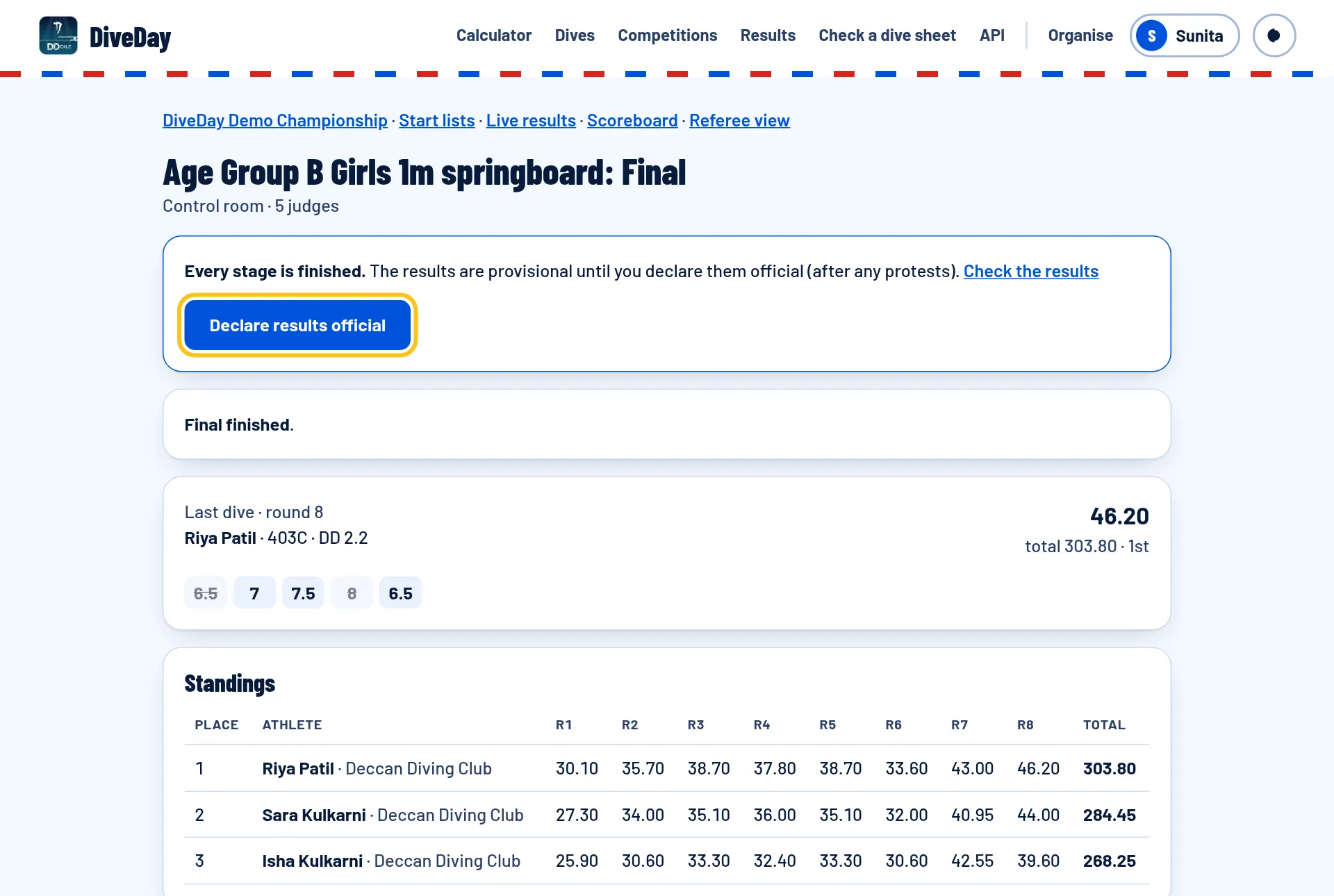
After the last dive, Finish the stage, check the results, and (after any protests) tap Declare results official. Families are told, and the scores and personal bests go into each diver's history.
15Message the families
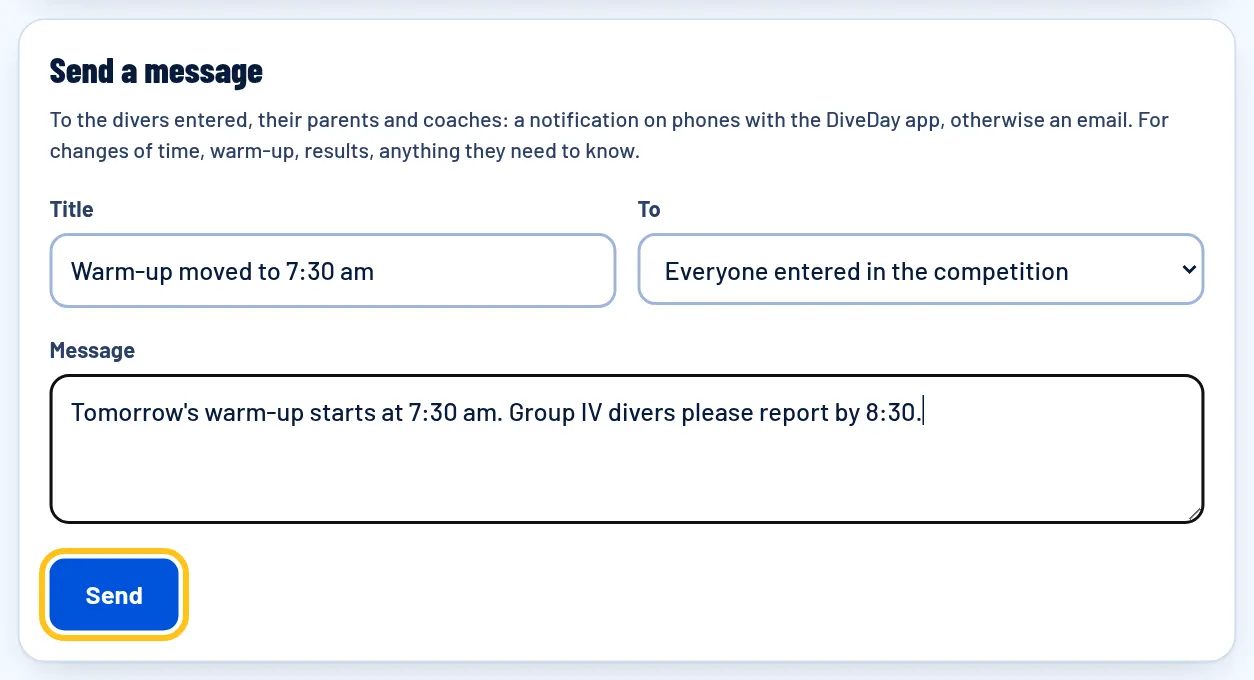
On the Manage page, Send a message reaches everyone entered, or one event's divers, their parents and coaches: a notification on phones with DiveDay, otherwise an email. For warm-up times, delays, results.
Something not covered here? Write to us.